Yannick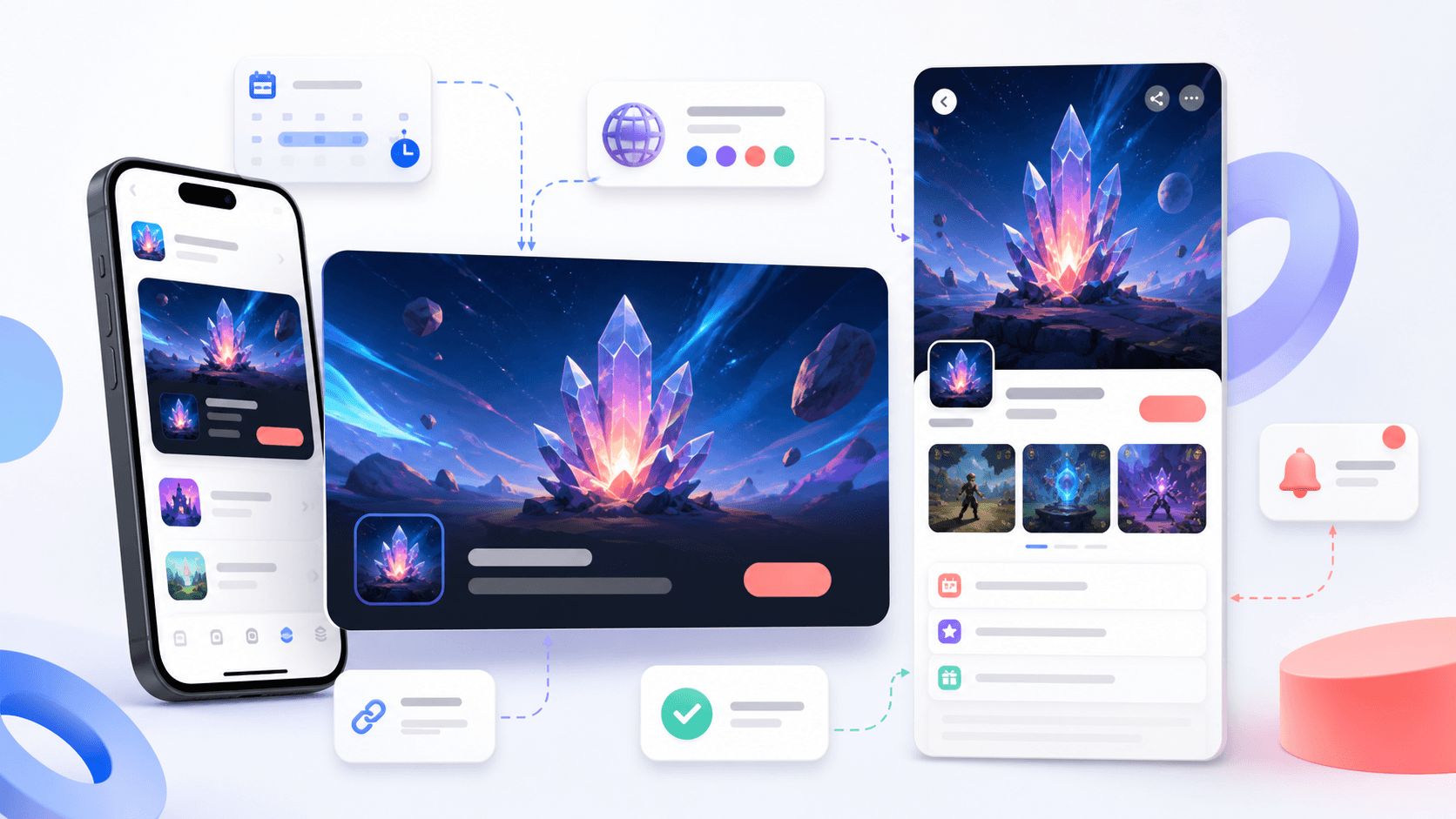
One event, two surfaces
Plan the campaign before drawing the assets
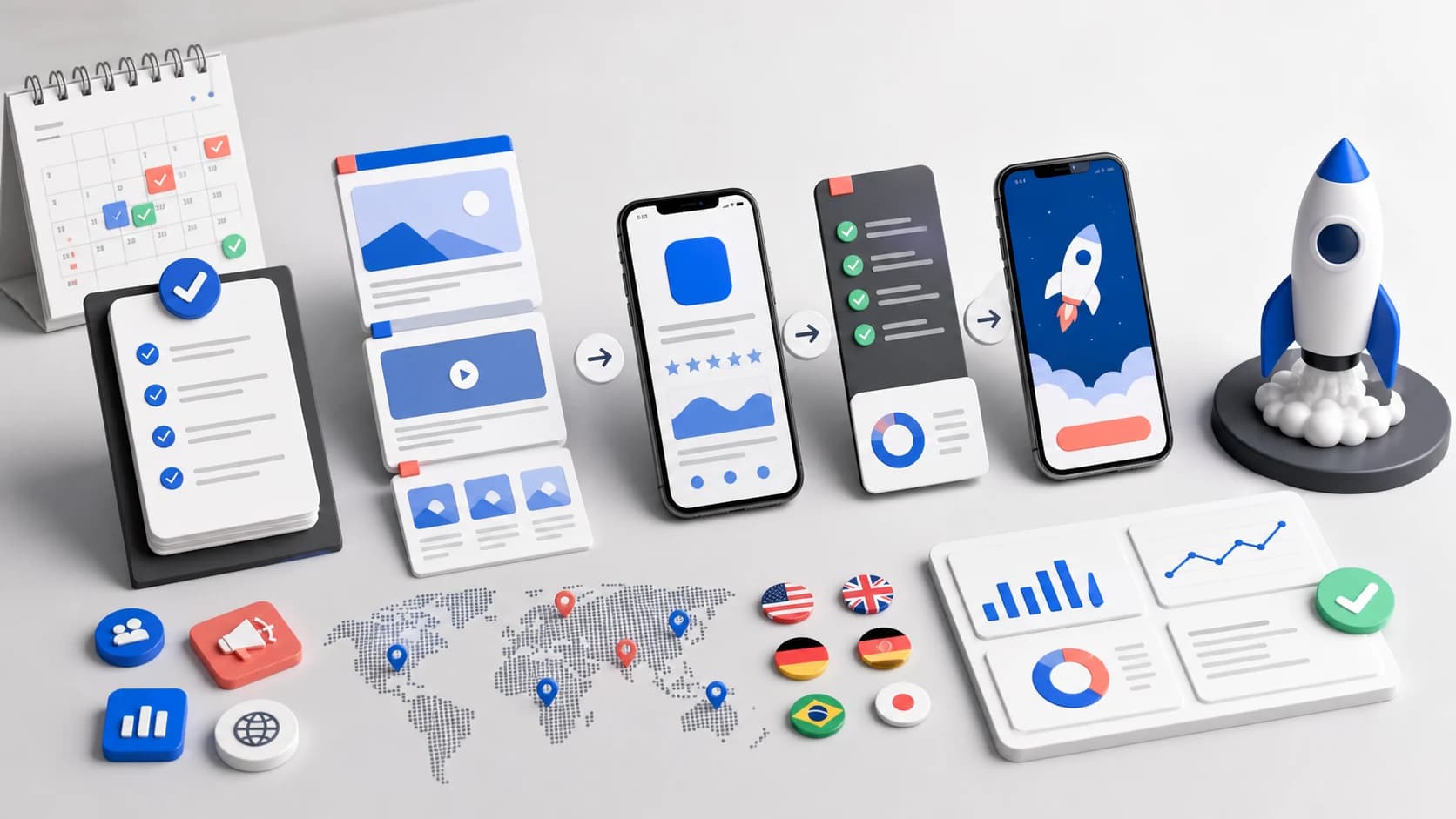
The event promise, in-app destination, store metadata, and two media crops need to work as one reviewable experience.
Define
Choose a timely event with a clear audience, benefit, badge, and destination.
Adapt
Design one focal system for the landscape card and portrait details page.
Submit
Localize, schedule, test the deep link, and review the complete experience.
App Store In-App Events are timely experiences inside an app or game—such as a competition, premiere, challenge, live stream, or new season—that customers can discover across the App Store and Apple Games. Each event combines metadata, a badge, a deep link, availability, and media for two very different shapes.
The design job is not simply exporting one image twice. The landscape event card needs an immediate focal point at small sizes, while the portrait details media must support a deeper explanation. Both should clearly belong to the same event and lead to the exact in-app destination promised by the listing.
Quick answer
Prepare a 1920×1080 landscape event card and a 1080×1920 portrait details asset at minimum. Write a 30-character event name, 50-character short description, and 120-character long description. Add an accurate badge, tested deep link, localizations, availability, and schedule before sending the event to review.
Where In-App Events appear
Published events can appear on the app's product page, in App Store and Apple Games search, and in editorial or personalized discovery surfaces. Customers can open the event details, download the app if needed, opt into a notification, and then follow the event action into the app.
That reach makes the event a discovery surface, not an ordinary release note. The topic should be timely and meaningful to a customer: new content, a real competition, a live experience, a premiere, or another event that occurs within the app. A routine bug fix or generic feature list belongs in the version notes instead.
AppLaunchFlow's In-App Event graphics generator produces the 1920×1080 event card and the 1080×1920 details media from one design, at Apple's required dimensions, so both surfaces read as the same event.
Current In-App Event image and video sizes
Apple separates event-card media from event-details media. The card is landscape; the details page is portrait. Images and videos share the same aspect ratio and resolution range for their surface.
| Media | Shape | Minimum | Maximum | Formats | Max file |
|---|---|---|---|---|---|
| Event card image | 16:9 landscape | 1920×1080 | 3840×2160 | JPG, JPEG, PNG | 500 MB |
| Event card video | 16:9 landscape | 1920×1080, 30/60 fps | 3840×2160, 30/60 fps | MOV, M4V, MP4 | 500 MB |
| Details image | 9:16 portrait | 1080×1920 | 2160×3840 | JPG, JPEG, PNG | 500 MB |
| Details video | 9:16 portrait | 1080×1920, 30/60 fps | 2160×3840, 30/60 fps | MOV, M4V, MP4 | 500 MB |
Export at the minimum dimensions when you want a simple production baseline, or at the maximum dimensions when the source artwork benefits from additional resolution. Keep the aspect ratio exact. For video, Apple accepts 30 or 60 frames per second and documents audio requirements separately. Recheck the current media and audio specification before the final export.
Design one visual system for two crops
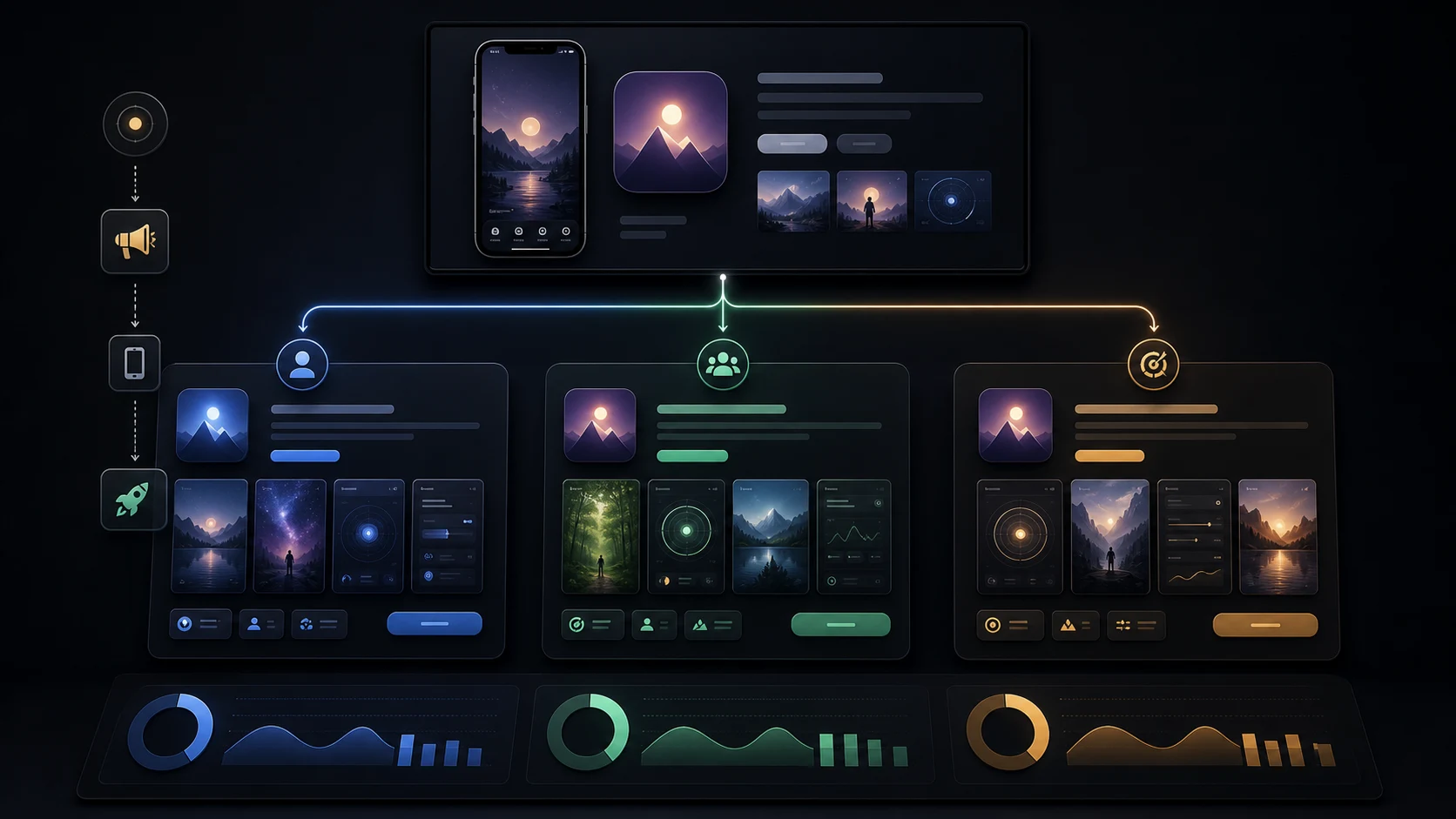
Begin with a shared focal object, scene, color system, and event mood. Then compose each shape independently. Cropping a landscape key art into a portrait frame often removes the subject or creates empty space in the wrong place.
- Use one clear event subject that still reads when the card is displayed small.
- Keep essential detail away from the extreme edges of both compositions.
- Let App Store metadata carry the explanation; avoid turning the artwork into a flyer.
- Use the portrait version to reveal more context, not a stretched landscape crop.
- Preview light and dark scenes against the store chrome before exporting.
- Localize meaningful in-art copy rather than embedding one language in every market.
AppLaunchFlow's In-App Event graphics generator keeps the card and details compositions in one app-focused design system. Use the broader screenshot story guide when the event campaign also requires an updated product-page narrative.
Write metadata that survives the character limits
Write the metadata before polishing the artwork. It defines the event promise and reveals whether the concept is specific enough. The reference name is internal; the remaining fields are customer-facing.
| Field | Limit | Writing job |
|---|---|---|
| Reference name | 64 characters | Internal only; keep it descriptive and unique. |
| Event name | 30 characters | Visible on the App Store and Apple Games. |
| Short description | 50 characters | Appears on the event card. |
| Long description | 120 characters | Appears on the event details page. |
Lead with the event, not the app name. The card already has product context. Use the short description to explain what is happening and why it matters now. Use the long description for the differentiating detail, eligibility, timing, or reward—not a repeat of the name. Check every translation in the actual limit rather than truncating the English structure.
Choose the badge, purpose, priority, and deep link
Select the badge that truthfully describes the experience. Apple uses the badge and the event's general purpose to help communicate and distribute it. Do not label a routine update as a live event or competition merely because that badge sounds more exciting.
The deep link must land on the relevant content, not the home screen or a broken login state. Apple recommends a universal link and warns against unnecessary shorteners or redirects. Test the link for installed users, signed-out users, users without access, and customers who install from the event card. If an in-app purchase or subscription is required specifically for the event, disclose it accurately.
Scheduling, availability, and capacity
An event must last at least 15 minutes and can run for at most 31 days. Its publish date can be scheduled up to 14 days before the event begins. Availability follows the countries or regions where the app is available, and you can customize start times for selected markets within Apple's scheduling constraints.
Apple currently permits up to 10 published events at the same time and up to 15 approved events per app in App Store Connect. Treat that as capacity for meaningful programming, not a target to fill. If several events overlap, set priority deliberately and check the product-page order. Follow the current creation and scheduling workflow for the exact controls.
Localize the event as a complete experience
Localize the event name, descriptions, and any meaningful text in the media together. Check whether the experience is available and understandable in that market. A translated card that opens an untranslated event can damage trust even when the store metadata is technically valid.
Give translators context: event type, game mechanic or app job, dates, eligibility, reward, and tone. Review the result in both shapes because longer words can alter visual balance. Use the app localization guide to choose markets and create a review loop rather than producing unverified bulk translations.
Submission checklist
- Confirm the event is timely, happens inside the app, and matches the selected badge.
- Verify the event name and both descriptions against their current limits.
- Export and inspect both media shapes at accepted dimensions and formats.
- Test the deep link through installed, signed-out, and newly installed paths.
- Confirm any purchase requirement, availability, dates, time zones, and priority.
- Review every localization as metadata, artwork, and in-app destination together.
- Check that the live app can deliver the event throughout the scheduled window.
- Submit early enough for review and leave time to correct rejected metadata or media.
Once an event is published, editing becomes restricted. Apple documents which dates can still change and how in-review, approved, published, archived, and deleted events behave. Keep a final approved snapshot of the metadata and media so support and marketing teams know exactly what customers saw.
Measure discovery and downstream value
Define success before publishing. Separate event discovery from in-app success: event impressions and detail views describe store reach; downloads, opens, deep-link arrivals, participation, purchases, retention, and support outcomes describe business value.
- Compare the event window with a relevant baseline, not an unrelated launch spike.
- Annotate featuring, paid acquisition, push notifications, and creator promotion.
- Measure deep-link completion and participation after the store handoff.
- Review results by country and localization where the event promise differs.
- Record what to reuse: topic, timing, copy, crop, badge, or distribution—not only totals.
App Store In-App Events FAQ
What size is an App Store In-App Event card image?
Use a 16:9 landscape image. The current minimum is 1920×1080 pixels and the maximum is 3840×2160 pixels.
What size is the event details image?
Use a 9:16 portrait image. The current minimum is 1080×1920 pixels and the maximum is 2160×3840 pixels.
Does an In-App Event need review?
Yes. Submit the complete event for review and plan enough lead time to correct metadata, media, availability, or in-app behavior before the intended publish date.