Yannick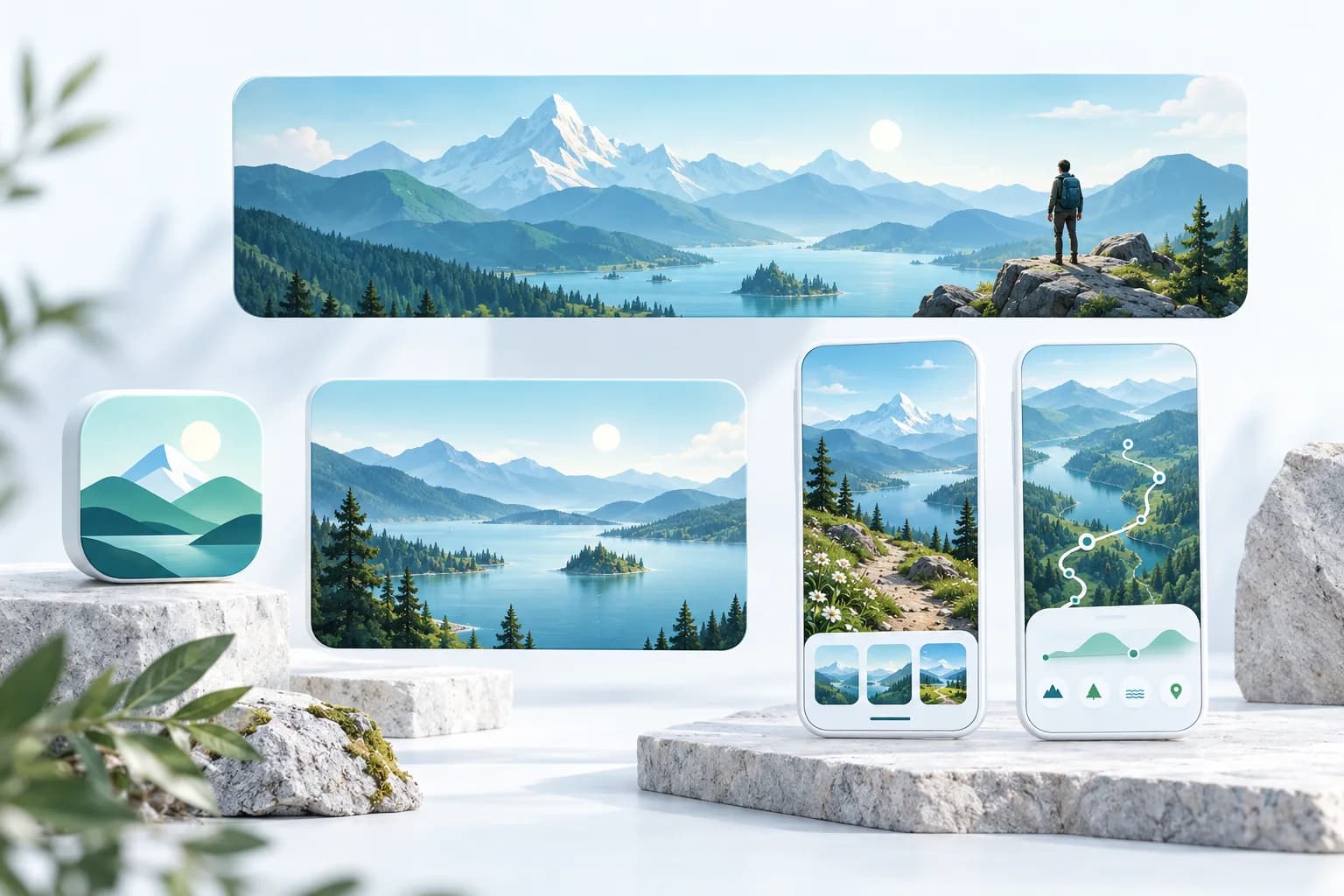
App Store creative assets · 2026
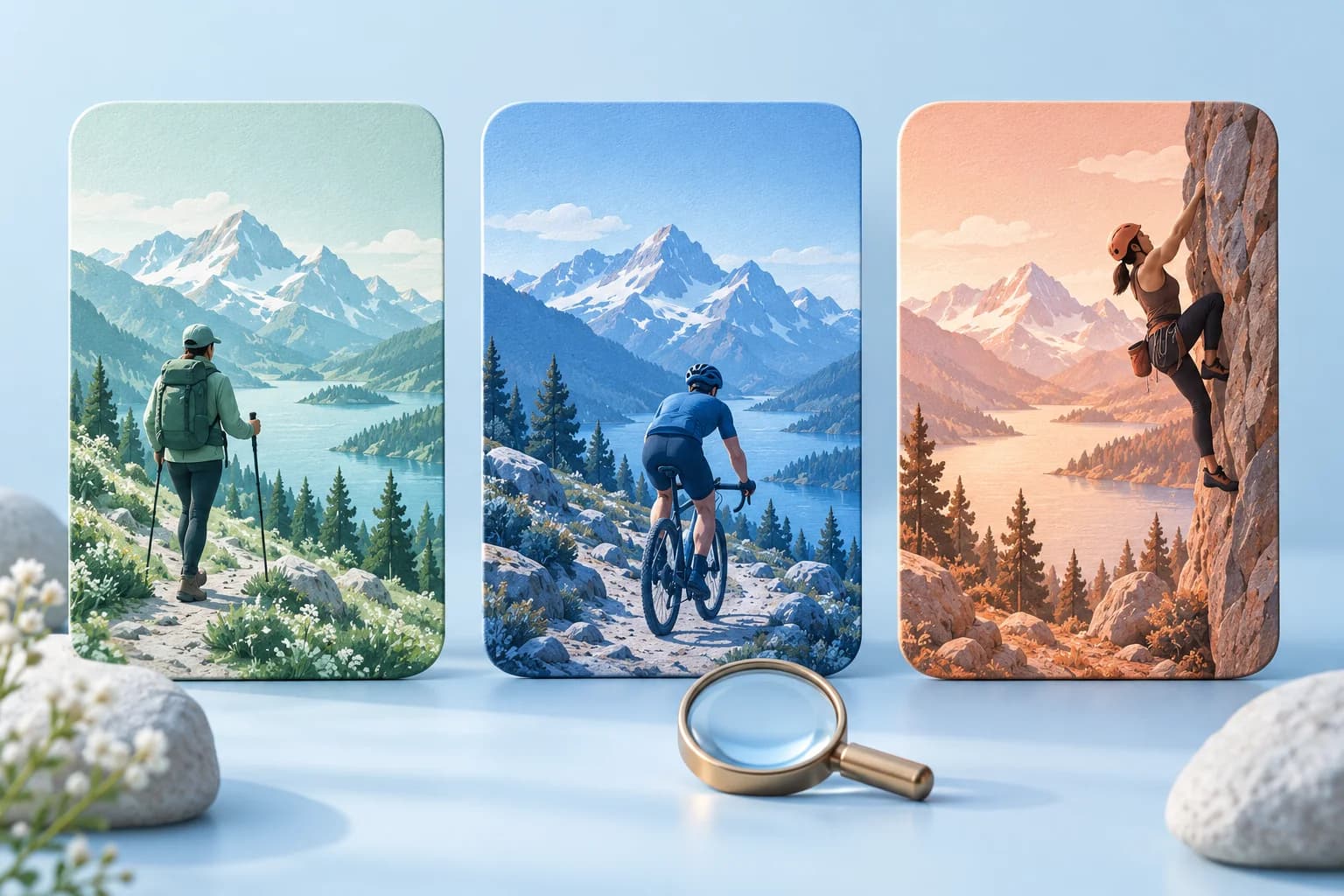
One app story. Different jobs for each asset.
Build a deliberate creative set for the product page, search, and events instead of stretching one banner into every placement.
Choose the placement
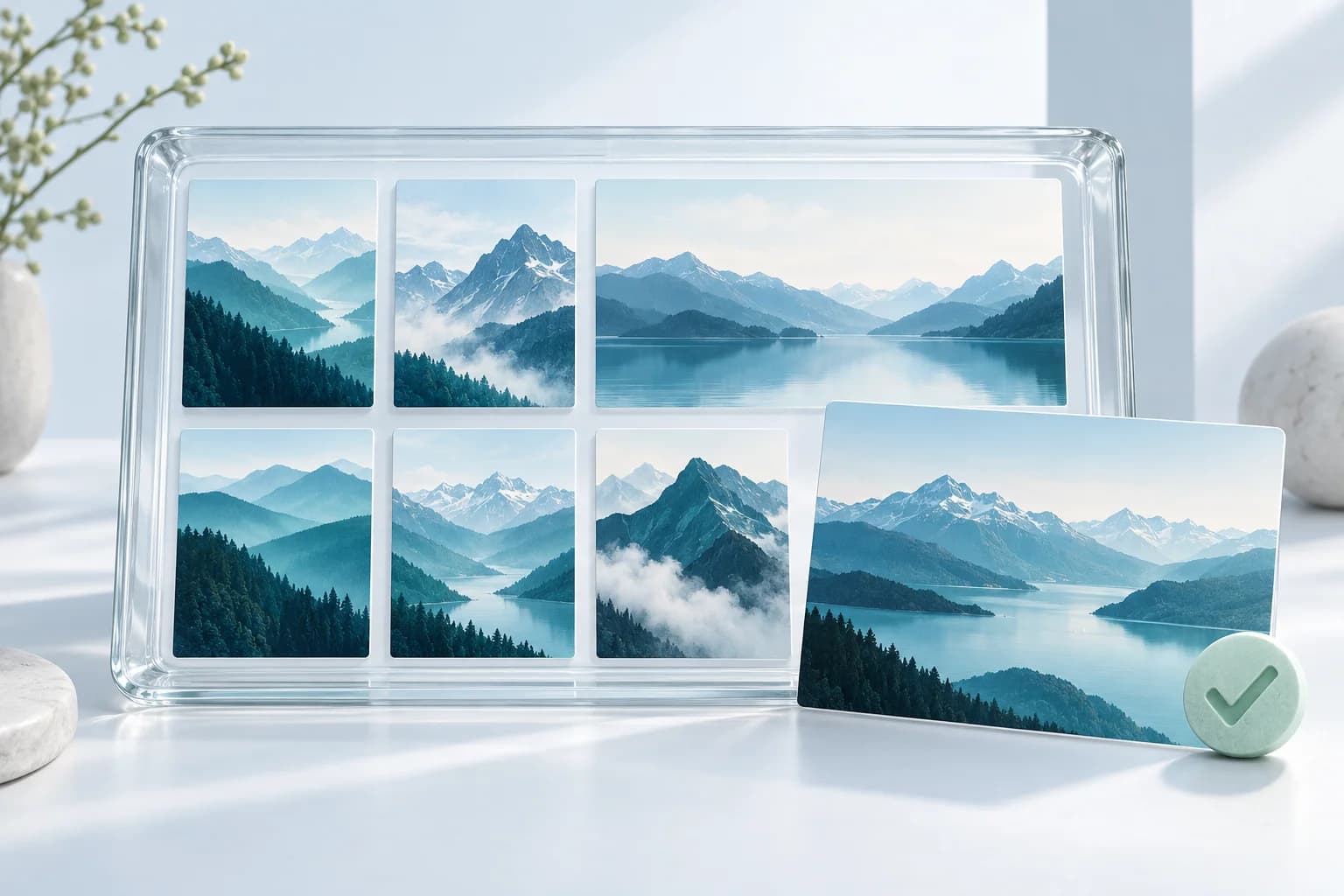
Separate brand artwork from screenshots that demonstrate the app.
Compose the story
Adapt the focal point and message for each canvas.
Preview and publish
Validate the upload, crop, localization, and destination.
App Store creative assets give an app team another way to communicate its value before download. The practical challenge is not simply making a larger image: a header welcomes someone who has already opened the product page, while search artwork must explain relevance before that visit. This guide helps you choose what to make first, preserve the same promise across the set, and hand off files that are ready to check in App Store Connect.
Quick answer
Keep screenshots, app previews, and creative artwork as separate deliverables. Start with a clear header and a search composition, or use Apple's universal image when the same visual works in both. Confirm the specifications below, preview every placement, and submit the assets through App Store Connect. Creative assets do not remove your screenshot requirements.
See Apple's official placements in context
The image below comes directly from Apple's developer guidance. It shows the header and search placements together; our editorial cover above is a separate conceptual illustration. These reference screens are not evidence of a live app's availability or performance.
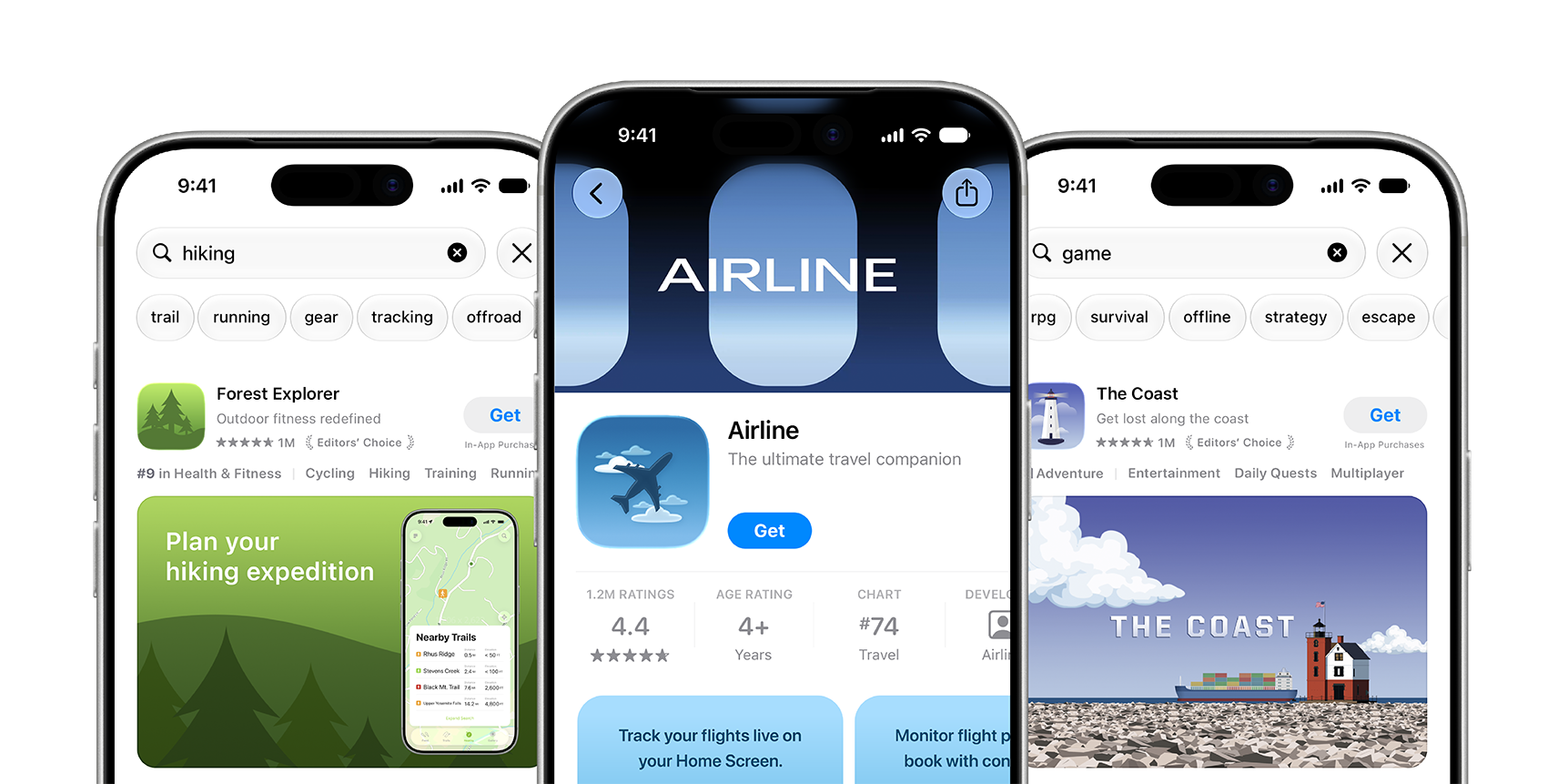
Apple's placement overview: search artwork sits within a result, while the header introduces the product page. The supporting screenshots remain separate below the app information.
Source: Apple Developer — App Store asset best practices · View full size
Image © Apple. Apple's documentation illustration, verified October 7, 2026; not a verified live listing, an AppLaunchFlow export, or a conversion case study.
Bring your screenshots and brand materials into the graphics studio to develop the artwork, then validate and publish the final assets in App Store Connect.
What changed and what stays separate
Apple documents optional creative artwork for product page headers and search results on iOS 27 and iPadOS 27 and later. A header can express a brand or content theme; screenshots still show the actual app experience. Treat them as complementary parts of the same story, not interchangeable files.
A useful production brief names the placement before it names the design. 'Make a launch banner' is ambiguous. 'Introduce our guided hiking experience in a product page header' gives the designer an audience, a job, and a constraint. Keep event artwork tied to a real event, and keep a Google Play feature graphic in its own export set.
App Store header and search image sizes
These are Apple's current image requirements, reviewed October 7, 2026. Images must be opaque. The universal option uses a specific resolution; selecting a generic 16:9 canvas does not produce an equivalent upload.
| Placement | Ratio | Resolution in pixels | Files |
|---|---|---|---|
| Product page header | 21:9 | 3840 × 1646 | JPEG or PNG · opaque |
| Search-result artwork | 3:2 | 1920 × 1280 to 3840 × 2560 | JPEG or PNG · opaque |
| Universal image | 16:9 | 5244 × 2950 | PNG · opaque |
Choose dedicated or universal artwork
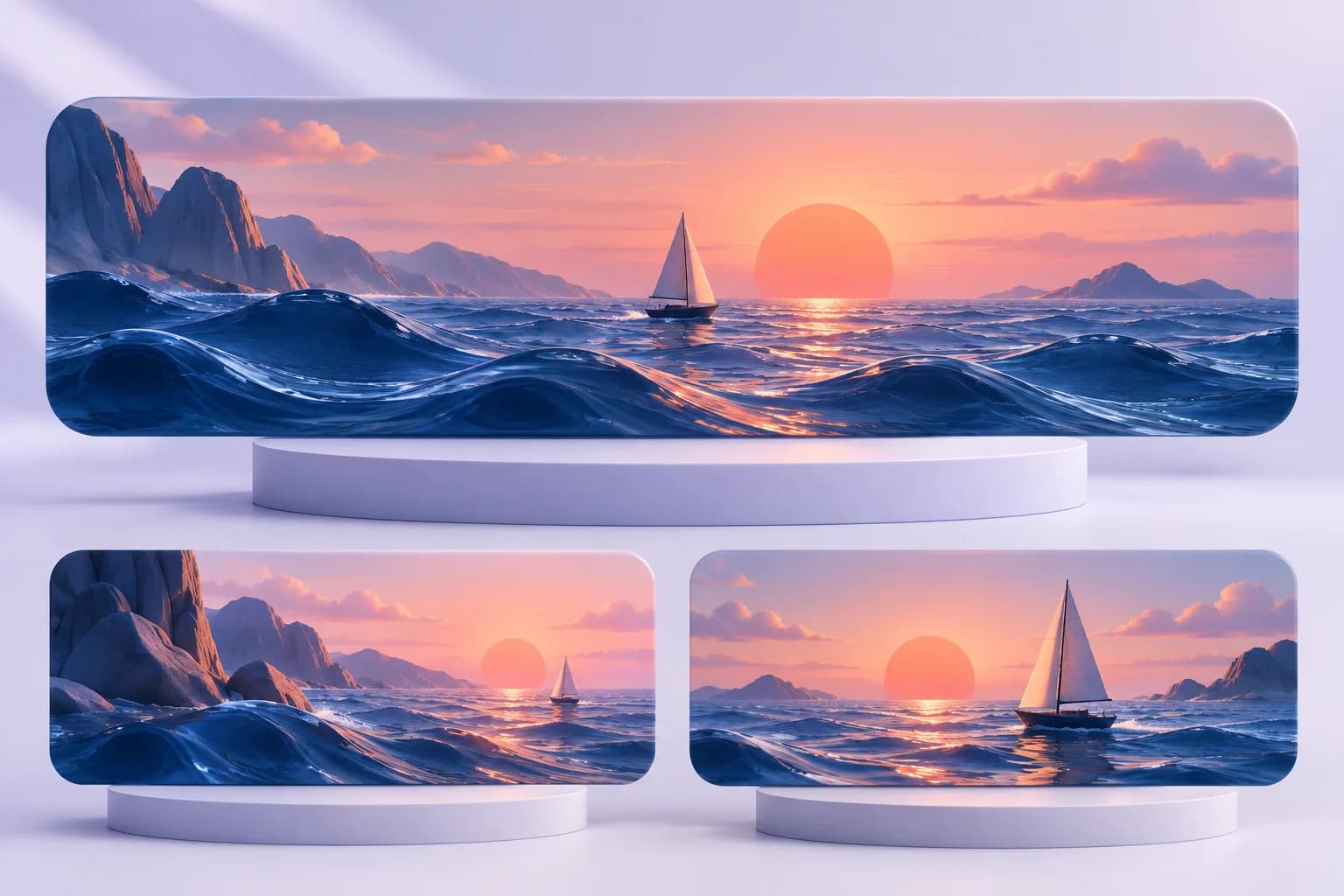
Use dedicated artwork when a wide scene benefits the header but the search card needs a closer view of the result. A hiking app could use a spacious landscape for the header and a tighter trail-and-route composition for search. Keep the palette and subject consistent while deliberately changing the framing.
Use a universal image when one central idea remains understandable in both placements. Build from Apple's universal template, then inspect the preview rather than guessing a safe-area percentage. If the crop hides the thing that makes the app useful, create a dedicated version instead. Universal compatibility saves a handoff; it does not guarantee a good composition.
Our cover is an original conceptual illustration of a coordinated asset set, not a real app, an Apple screenshot, or a studio export. It illustrates shared visual identity rather than an upload-ready template.
When to use a still image or a video
A still image is a good starting point when the core idea is clear in one frame. Try motion when the app's value is a transformation or experience that a still cannot explain. For example, show a route forming or a finished edit appearing, rather than moving decorative shapes around an otherwise static message.
Header videos use 21:9 at 3840 × 1646; search videos use 3:2 at 1920 × 1280 through 3840 × 2560. Apple specifies 30 or 60 fps, 5–30 seconds, and MOV, M4V, or MP4. Search playback cannot currently be unmuted; headers can be. Plan a silent-first loop and a strong poster frame. These are creative-video requirements, not the rules for app previews or event videos.
Build an asset brief before opening the editor
Write a six-line brief: audience, job, promise, visual evidence, placement, and destination. For a route-planning app: first-time hikers; find a suitable nearby trail; choose a route confidently; a real trail map and distance preview; search artwork; the hiking-focused page. This keeps the artwork grounded in a product experience rather than a slogan.
In AppLaunchFlow, bring your screenshots and brand materials into the graphics workflow to develop the composition. Keep the editable design as the source of truth. Choose the required placement preset when available in your studio, and check the exported file against Apple before uploading. The studio prepares the artwork; App Store Connect controls review and publication.
- Choose one focal point and one promise; remove decorative elements that compete with them.
- Use real product evidence and assets you own or have permission to use.
- Review short copy at thumbnail size and allow for translated text.
- Prepare a separate screenshot story that proves the promise after the visitor opens the page.
Preflight the set, then measure the right result
Before submission, check pixel dimensions, file type, alpha, and the final image itself—not just the editor canvas. Preview supported devices, orientations, and localizations in App Store Connect. Save a manifest with the source design, exported file, intended placement, locale, and revision so a later campaign cannot quietly reuse an obsolete asset.
After release, record what changed and when. Compare compatible traffic sources and equal complete windows. A better product-page conversion rate with fewer impressions can mean something very different from a search reach increase with unchanged downloads. Do not call a before-and-after movement a creative win without checking audience, campaign, app version, and seasonality.
Continue the workflow
Primary sources and verification notes
Platform requirements and software capabilities change. These sources were reviewed for this guide on October 7, 2026; open the current source again before publishing assets, enabling production access, or standardizing a team workflow.
- Apple: creative asset specifications: The current image and video upload requirements. Check them again before final export.
- Apple: manage your App Store assets: Asset Library, review, placement assignment, previews, and updates to live pages.
- Apple: asset best practices and templates: Official creative guidance and placement templates; not a promise of conversion uplift.
Creative Assets Guide FAQ
What is the App Store header image size?
The dedicated 21:9 header image is 3840 × 1646 pixels. Apple also accepts the universal 16:9 PNG at 5244 × 2950 for the header and search. Check the full specification before exporting.
Is an App Store header a Play Store feature graphic?
No. They have different placements and upload specifications. Keep Apple's header and search artwork separate from the 1024 × 500 Google Play feature graphic.
Can I use a video instead of an image?
Apple supports dedicated creative videos for header and search placements. Use the placement-specific dimensions and check duration, frame rate, container, poster frame, and silent playback before submission.