Yannick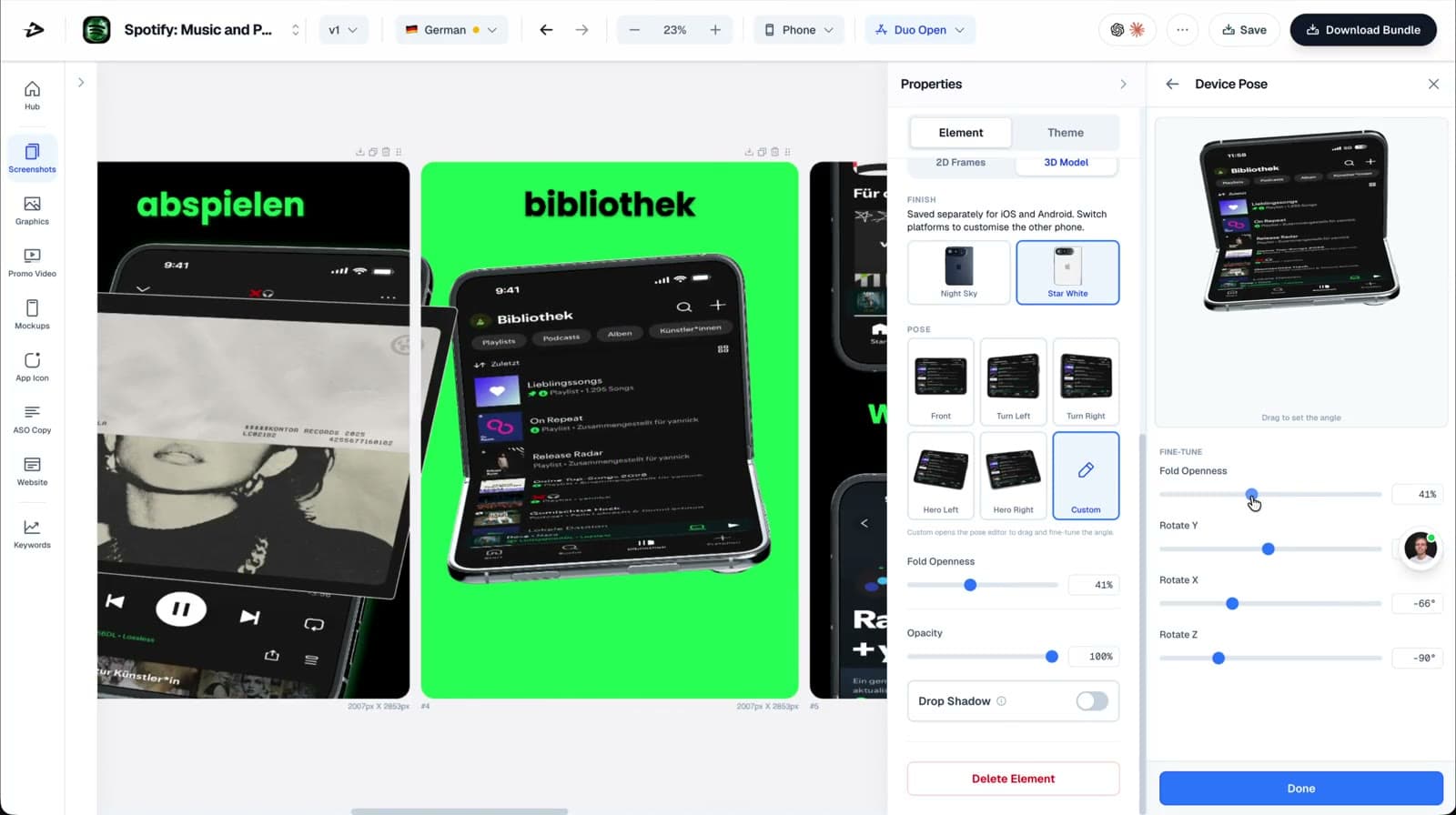
iPhone Duo · Release preparation
Two displays need two deliberate compositions.
Separate the App Store upload canvas, the app capture inside it, and the device frame used to present that capture.
Check the target
Select the inner or outer display before composing.
Adapt the layout
Use real app UI and keep the message readable on each canvas.
Validate the handoff
Inspect every exported size and localization before submission.
An iPhone Duo screenshot is not just an existing phone image with a foldable frame around it. The inner and outer displays have different proportions, and your app may use the space differently. A strong store set makes that difference useful: it shows a convincing app experience on each display while keeping the same promise, visual language, and release story. This guide separates Apple’s current upload requirements from our practical design and quality-control recommendations.
Quick answer
Create separate inner and outer compositions from accurate app captures. Select the matching Duo canvas, check the complete exported image, and keep device-frame styling separate from file-size validation. A frame or resize cannot demonstrate compatibility that the app itself does not have.
iPhone Duo screenshot dimensions and the requirement date
Apple’s screenshot reference lists separate inner and outer targets. The table below describes the complete upload image, not the screen rectangle inside a device mockup. Check the current Apple specification again when preparing the release; deadlines and accepted targets can change.
| Display | Portrait | Landscape |
|---|---|---|
| Outer display | 1398 × 2034 | 2034 × 1398 |
| Inner display | 2007 × 2853 | 2853 × 2007 |
Apple lists JPEG/JPG/PNG uploads without transparency. Its current specification sets the Duo screenshot requirement from April 2027 for apps using the iOS 27.1 SDK or later. Check Apple’s current screenshot specifications before submission. Checked October 9, 2026.
Use accurate app captures, then refine each Duo display in the screenshot editor. The generator page shows the real pose and export workflow.
A Duo screenshot, a mockup, and a search creative are different assets
The app capture is evidence of the interface. The screenshot canvas is the store deliverable: it can contain a headline, supporting artwork, and an optional device frame. The Duo model is the presentation layer inside that canvas. Choosing it does not change the app’s actual UI or prove that the app supports both displays.
Keep product page headers and search-result artwork in another export set. Those placements introduce an app story; screenshots should demonstrate it. If a campaign needs a foldable-device visual in its header, reuse the brand direction but recompose the artwork for the header placement rather than uploading a screenshot into the wrong slot.
Prepare the source captures before styling
Start with the app state you want a prospective user to understand. For example, a planning app might show a focused route summary on the outer display and a map with a useful detail pane on the inner display—only if those are real supported interfaces. Do not stretch a narrow capture to fill the larger canvas or invent a split-view layout that the app cannot produce.
Use consistent demo data, account state, language, and feature availability across the pair. Remove private information and notifications. Keep a small capture inventory that records which display, orientation, app build, and language each source represents. This makes a future release refresh much safer than guessing from exported filenames.
- Check the actual app experience on each target display before making a marketing claim.
- Capture a complete state with readable content, not an empty loading view.
- Use content you own or have permission to display.
- Keep the unstyled captures alongside the editable design project.
Create and export the Duo set in AppLaunchFlow
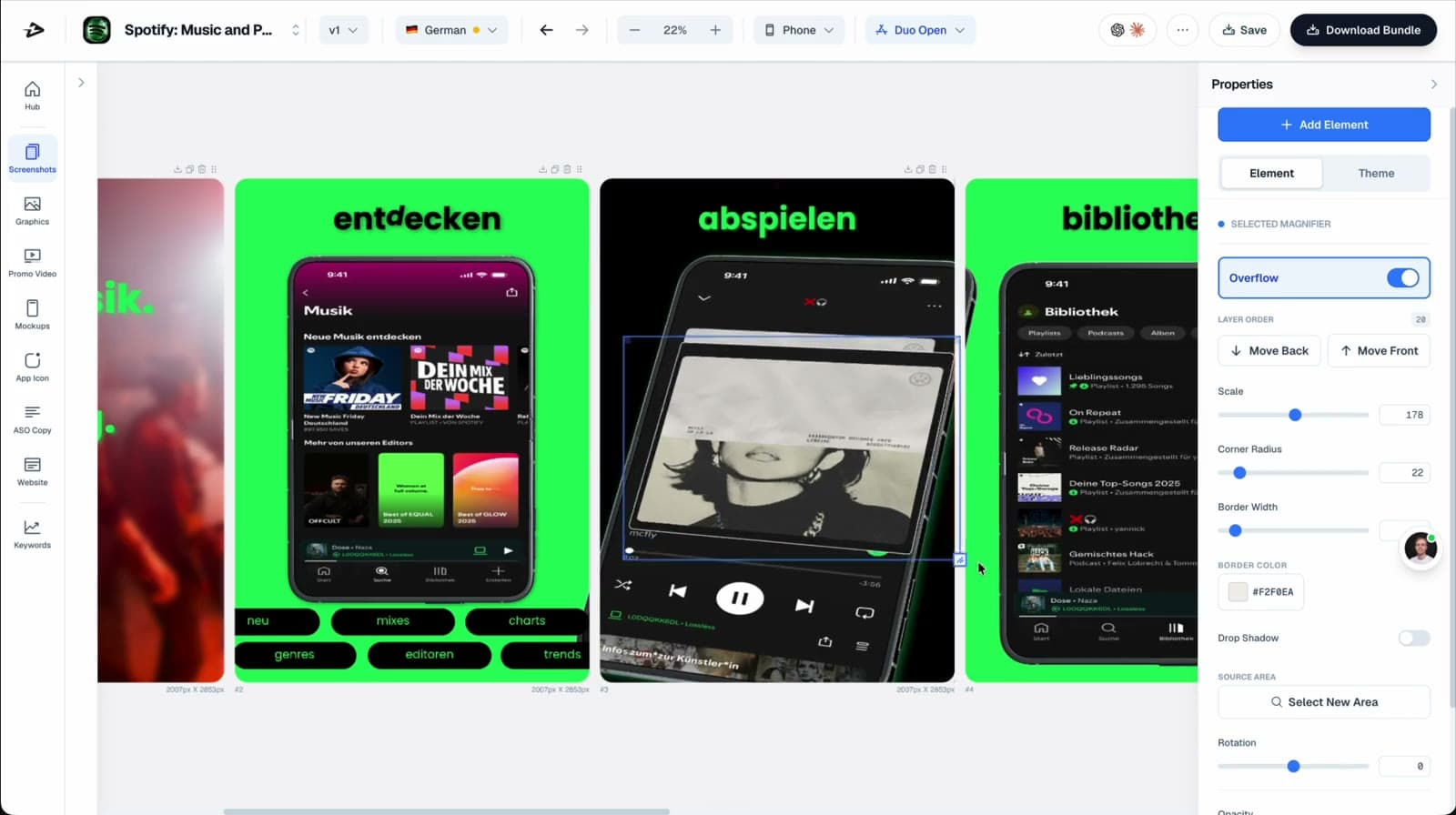
Open the screenshot workflow and upload your app captures. Build the main story first, then select the Duo model and the display canvas you want to refine. The editor includes device poses and fold controls; use them to preserve a clear view of the UI. A dramatic angle is useful only when the product remains understandable.
Phone sizes can be edited independently. Untouched sizes follow the main layout, so verify the selected canvas before changing caption position, device scale, or spacing. Treat the inner and outer layouts as related designs, not identical crops. Check localized headlines separately because a line that fits one canvas can wrap awkwardly on the other.
In Download Bundle, select the required Duo sizes and inspect the exported files. The recording below shows the editor and export selection. It does not demonstrate a completed Apple review or prove that the illustrative app is a customer.
A practical Duo screenshot QA checklist
Run two reviews: one for technical acceptance and one for communication. The file can have the right dimensions and still tell the wrong story. Inspect the original export at full size, then view it as a small store thumbnail. Keep a short release checklist so the same checks happen after every design or localization change.
- Target: inner and outer files are clearly distinguished; portrait and landscape are not accidentally swapped.
- File: the complete image matches the chosen Apple target and contains no transparency.
- Accuracy: each screenshot represents the app build and the actual display experience.
- Composition: captions, device edges, and important UI are not clipped or obscured by the fold.
- Localization: translated headlines remain legible and match the UI language.
- Handoff: preview the selected files in App Store Connect and resolve any account-specific validation errors before submission.
What should you test after the new set is ready?
Treat device readiness and conversion experimentation as separate jobs. First produce an accurate, technically valid set. Then write a focused hypothesis about the first screenshot, story order, or message. If you change the device, headline, background, and feature order together, a result cannot tell you which individual decision mattered.
Do not interpret the introduction of a new display size as a guaranteed conversion improvement. Use a stable baseline and Apple’s experiment reporting where eligible. If the goal is a persistent page for a particular campaign, a custom product page may be the better tool.
Continue the workflow
Primary sources and verification notes
Platform requirements and software capabilities change. These sources were reviewed for this guide on October 9, 2026; open the current source again before publishing assets, enabling production access, or standardizing a team workflow.
- Apple: screenshot specifications: Accepted Duo dimensions, file formats, transparency rules, and the SDK-related requirement date.
- Apple: get ready for iPhone Duo: Platform preparation is separate from adding a device frame to marketing artwork.
iPhone Duo Screenshot Sizes FAQ
Can I resize a normal iPhone screenshot for Duo?
Resizing alone does not adapt the app experience or preserve a good composition. Use accurate display-specific captures and recompose the store canvas instead of stretching the UI.
Does the Duo frame make my app Duo-compatible?
No. A frame is a visual presentation element. Your app and its captures must accurately represent the supported display experience.
Where do I create Duo screenshot layouts?
Start a screenshot project in AppLaunchFlow, upload real captures, select the Duo device and display canvas, refine the layouts, and check the selected export sizes before submission.