Yannick
Fastlane can automate the repetitive parts of producing App Store screenshots: launching an app across simulator and language combinations, navigating to predictable UI states, capturing raw screens, and uploading approved files to App Store Connect.
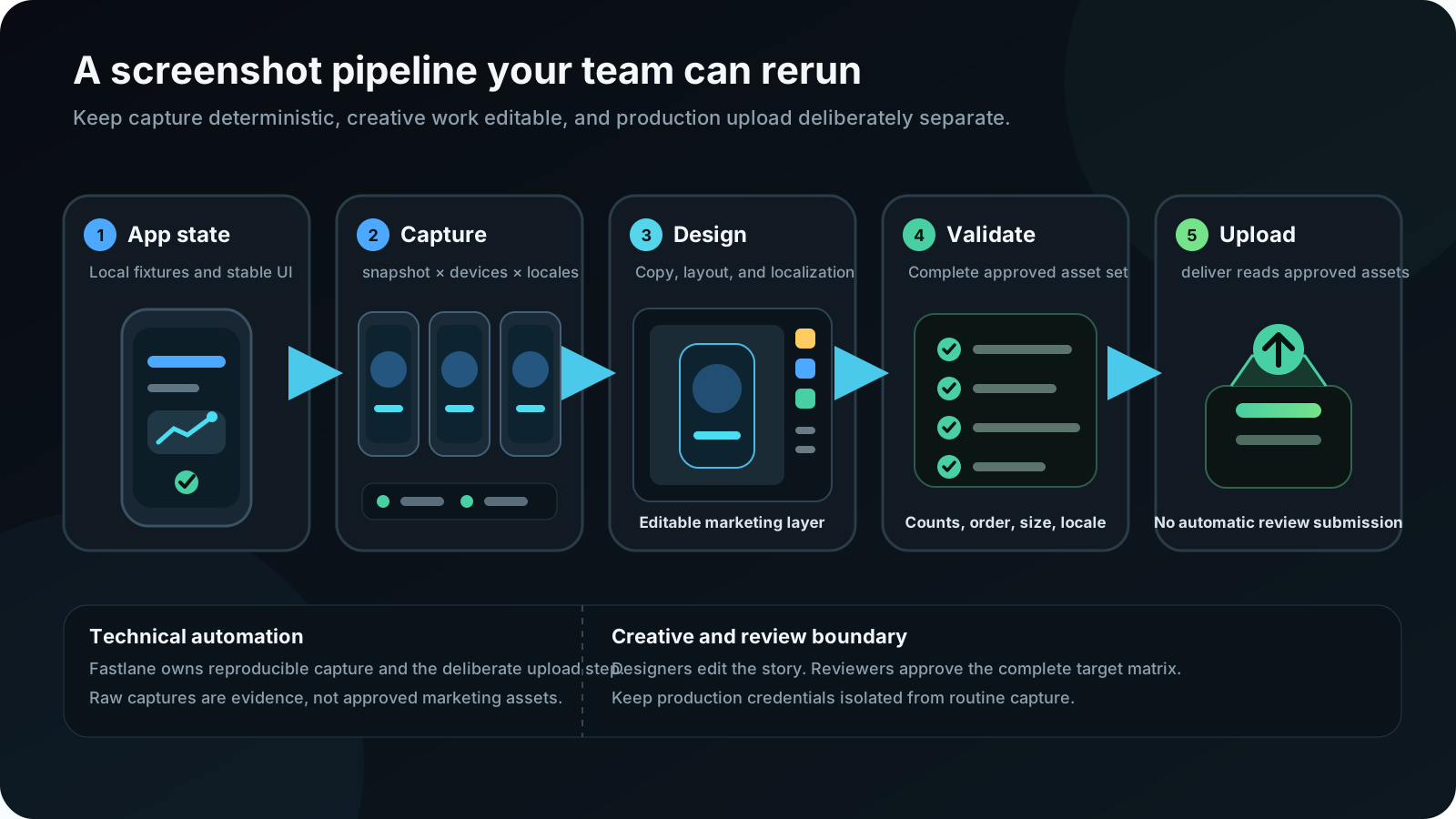
It does not automatically solve the entire creative workflow. Capture, design, localization, validation, and upload are separate jobs. The reliable system is the one your team can rerun after an interface change without rebuilding hundreds of assets by hand.
Separation of concerns
Capture technically. Design deliberately. Upload reviewed assets.
Capture
Use deterministic UI tests and stable screenshot names.
Design
Turn raw UI into an editable, localized marketing story.
Deliver
Validate a complete approved directory before upload.
The Fastlane screenshot pipeline
| Stage | Recommended owner | Output |
|---|---|---|
| Test data and app state | App code plus UI-test fixtures | Predictable, review-safe UI |
| Raw iOS capture | Fastlane snapshot | Screens grouped by language and device |
| Raw Android capture | Fastlane screengrab | Screens grouped by locale and device |
| Basic frame and text composition | Fastlane frameit | Framed or titled screenshots |
| Flexible design and localization | AppLaunchFlow or another visual workflow | Store-ready creative variants |
| iOS upload | Fastlane deliver | Assets in App Store Connect |
This guide concentrates on iOS because “Fastlane screenshots” usually refers to snapshot. Android uses screengrab with Espresso or UI Automator-based tests and different store requirements.
When screenshot automation is worth it
Fastlane is strongest at repeatable capture. If you also want Codex, Claude Code, or Cursor to turn those captures into layouts, localized variants, and export-ready assets, connect the hosted AppLaunchFlow MCP server and keep Fastlane focused on deterministic simulator screenshots.
Five screenshots × three devices × eight languages × two visual variants creates 240 outputs before Product Page Optimization or custom product pages. The difficult part is not multiplication; it is keeping state, copy, order, and creative consistent.
Fastlane is usually worth maintaining when:
- the app supports several languages;
- UI changes ship regularly;
- deterministic UI tests already exist;
- more than one person must regenerate screenshots;
- the team needs a reviewable capture artifact;
- manual capture mistakes cost more than the test path.
Manual capture can still be reasonable for one device, one language, or a prototype whose UI is changing faster than the screenshot test can remain stable.
Prerequisites
- A Mac with a compatible Xcode installation and command-line tools.
- A working iOS project or workspace.
- A shared scheme containing an enabled UI-test target.
- A managed Ruby environment and pinned Fastlane installation.
- Predictable test data that does not depend on production accounts.
- A device and locale matrix aligned with the current store strategy.
Use Bundler so local and CI behavior share the same Fastlane version:
source "https://rubygems.org"

gem "fastlane"
bundle install
bundle exec fastlane --versionRecord the tested Xcode, Ruby, Bundler, and Fastlane versions with the pipeline. The examples below have been syntax-checked and compared with the current action documentation, but project identifiers and installed simulator names must match your own environment.
Set up snapshot
- Create a UI-test target.
- Run the snapshot initializer from the iOS project directory.
- Add the generated SnapshotHelper.swift to the UI-test target.
- Use a shared scheme that builds the UI-test target.
- Call setupSnapshot before launching the app.
- Call snapshot at each stable state.
bundle exec fastlane snapshot initExample UI test
import XCTest

final class StoreScreenshotTests: XCTestCase {
    private var app: XCUIApplication!

    override func setUpWithError() throws {
        continueAfterFailure = false
        app = XCUIApplication()
        setupSnapshot(app)
        app.launchArguments += ["-uiTesting", "-screenshotMode"]
        app.launch()
    }

    func testStoreStory() throws {
        XCTAssertTrue(
            app.staticTexts["dashboard-title"]
                .waitForExistence(timeout: 10)
        )
        snapshot("01-dashboard")

        app.buttons["create-project"].tap()
        XCTAssertTrue(
            app.staticTexts["project-editor-title"]
                .waitForExistence(timeout: 10)
        )
        snapshot("02-create-project")

        app.buttons["preview-result"].tap()
        XCTAssertTrue(
            app.staticTexts["preview-title"]
                .waitForExistence(timeout: 10)
        )
        snapshot("03-preview")
    }
}
This is an illustrative structure, not a drop-in test. Accessibility identifiers, navigation, launch arguments, and readiness conditions must match the real app.
Make screenshot data deterministic
A simulator should not depend on yesterday's backend data, a developer's account, or a request that may finish after capture. Add an explicit screenshot mode:
let isScreenshotMode =
    ProcessInfo.processInfo.arguments.contains("-screenshotMode")
In that narrow mode the app can:
- load local fixtures;
- use a stable date and locale-safe sample content;
- disable unpredictable notifications and nonessential animation;
- avoid personal information;
- reset to the same initial state for every run.
Avoid fixed sleeps. Wait for a meaningful state or expose a testable readiness signal:
let dashboard = app.staticTexts["dashboard-title"]
XCTAssertTrue(dashboard.waitForExistence(timeout: 10))
snapshot("01-dashboard")
Configure the Snapfile
scheme("StoreScreenshotUITests")
workspace("./ExampleApp.xcworkspace")

devices([
  "iPhone 16 Pro Max",
  "iPhone 16 Pro",
  "iPad Pro 13-inch (M4)"
])

languages([
  "en-US",
  "de-DE"
])

output_directory("./fastlane/raw_screenshots")
clear_previous_screenshots(true)
skip_open_summary(true)
stop_after_first_error(true)
override_status_bar(true)

launch_arguments([
  "-uiTesting -screenshotMode"
])
Simulator names depend on installed Xcode runtimes. Confirm available destinations on the local machine and CI runner. Use stop-after-first-error for release output, and clear or isolate each run so old files cannot make a partial capture look complete.
bundle exec fastlane snapshotReview the generated HTML summary before moving any images into the design or upload stages.
Use screenshot names as a stable contract
Encode story order and meaning:
01-dashboard
02-create-project
03-preview
04-localize
05-export
Avoid names tied to temporary implementation details. A stable name lets the design stage replace the raw capture while preserving the intended story position.
Choose between frameit and a visual design workflow
frameit can add supported device frames, backgrounds, padding, and localized text. It works well when one repeatable configuration expresses the layout and the supported frames match the target devices.
Use a visual workflow when:
- different screens need different compositions;
- copy and hierarchy change by story position;
- the team needs several creative directions or product-page variants;
- marketing teammates should edit without changing Ruby configuration;
- localization requires visual review and layout adjustment.
A practical hybrid workflow
- Capture current localized UI with snapshot.
- Review the Fastlane summary.
- Import selected raw screens into AppLaunchFlow.
- Apply one reusable visual system and benefit-first story.
- Localize the complete composition.
- Export exact store sizes.
- Validate file counts, dimensions, order, and locale.
- Place only approved exports in the upload directory.
- Upload with deliver.
Keep raw and approved assets separate
fastlane/
  raw_screenshots/
  screenshot_review/
screenshots/- raw_screenshots: generated by snapshot;
- screenshot_review: design exports waiting for review;
- screenshots: approved, upload-ready assets only.
The upload lane should read only from the approved directory.
Upload screenshots with deliver
platform :ios do
  desc "Upload approved screenshots without metadata, binary, or review submission"
  lane :upload_store_screens do
    upload_to_app_store(
      screenshots_path: "./fastlane/screenshots",
      skip_binary_upload: true,
      skip_screenshots: false,
      skip_metadata: true,
      overwrite_screenshots: true,
      submit_for_review: false,
      force: false
    )
  end
end
Every option shown is present in Fastlane's current action documentation, and the Ruby sample passes syntax validation. Still inspect the installed action before a real run:
bundle exec fastlane action upload_to_app_storeBe deliberate with overwrite_screenshots
Fastlane documents overwrite mode as clearing previously uploaded screenshots before uploading the new set. Before enabling it:
- verify all intended locales, devices, story positions, and dimensions;
- reject unexpected or duplicate files;
- save a review artifact;
- confirm the exact app and editable version;
- keep submit_for_review disabled unless that action is explicitly intended.
If authentication works but screenshot editing fails, inspect the version state and account role before assuming the lane is incorrect.
Authenticate safely
Prefer scoped, noninteractive App Store Connect credentials appropriate for this operation. Keep secrets out of the repository, screenshots, CI logs, shell history, and generated summaries. Separate capture from upload so contributors who regenerate images do not automatically receive production credentials.
Run the pipeline in CI
capture
  ├─ build and run UI tests
  ├─ generate raw screenshots
  └─ publish raw files and HTML summary

design/localization
  ├─ transform reviewed raw files
  └─ produce approved store assets

upload
  ├─ validate approved assets
  ├─ authenticate to App Store Connect
  └─ upload without automatic review submission
Pin the macOS runner, Xcode version, simulator runtimes, Ruby version, Bundler lockfile, Fastlane version, and app commit. Provenance makes unexpected visual changes explainable.
Validate before upload
- expected locales, device classes, and story positions;
- nonzero file size and allowed extensions;
- required dimensions and consistent orientation;
- no duplicates, alpha channels, or unexpected leftovers;
- a complete target matrix and correct ordering.
Apple's current screenshot specification allows one to ten screenshots and defines accepted formats and dimensions by device class. Use the dedicated App Store screenshot specifications guide instead of copying a device table that will age separately.
Product Page Optimization and custom product pages
Keep capture identity separate from creative destination. The same raw dashboard can feed a default page, a benefit-led PPO treatment, and several audience-specific custom product pages:
capture: 01-dashboard
creative: default-v1
creative: ppo-benefit-led-v1
creative: cpp-freelancers-v1
creative: cpp-agencies-v1
Do not make the UI test know about every campaign. Keep capture stable and let the creative layer map screens into variants. Read the App Store screenshot A/B testing guide and the custom product page guide for the strategy around those destinations.
Flutter apps and Fastlane screenshots
Fastlane operates around the built iOS app, Xcode project, simulator, and test path. A Flutter app can use Fastlane for capture and upload, but snapshot does not replace a working iOS UI-test target or another tested capture integration. Do not promise a one-command Flutter workflow unless that exact stack has been run and documented.
Troubleshooting Fastlane screenshots
| Symptom | Likely cause | Inspect |
|---|---|---|
| No screenshots | Helper or invocation is wrong | setupSnapshot, target membership, and command |
| One device or locale is missing | UI test failed and the run continued | Logs and stop-after-first-error |
| Old screenshots reappear | Previous output was not cleared | Run isolation and output directory |
| Loading state is captured | Network fixture or weak readiness condition | Local fixtures and state-specific waits |
| Wrong language | Locale override or missing localization | Arguments and bundled translations |
| Text clips in one locale | Layout does not handle expansion | Per-locale summary and design template |
| frameit output is rejected | Final canvas is not a valid store size | Store-sized composition and export |
| Upload replaces too much | Overwrite used with an incomplete directory | Complete approved target matrix |
A safer Fastlane screenshot lane
platform :ios do
  desc "Capture raw localized screenshots"
  lane :capture_store_screens do
    capture_ios_screenshots(
      clean: true,
      clear_previous_screenshots: true,
      skip_open_summary: true,
      stop_after_first_error: true,
      output_directory: "./fastlane/raw_screenshots"
    )
  end

  desc "Upload already reviewed store assets"
  lane :upload_store_screens do
    # Run a project-specific validation action or script here.
    upload_to_app_store(
      screenshots_path: "./fastlane/screenshots",
      skip_binary_upload: true,
      skip_metadata: true,
      skip_screenshots: false,
      overwrite_screenshots: true,
      submit_for_review: false,
      force: false
    )
  end
end
Capture and upload are intentionally separate. The sample passes Ruby syntax validation, but a production team must run it against its recorded iOS environment and a safe editable App Store version before relying on the upload result.
Fastlane screenshot FAQ
What is the difference between snapshot, frameit, and deliver?
snapshot uses UI tests to capture localized app screens across simulator and language combinations. frameit applies device frames, backgrounds, and optional localized text. deliver, exposed through upload_to_app_store, uploads App Store metadata and screenshots.
Does Fastlane automatically design App Store screenshots?
frameit supports frames, backgrounds, padding, and title or keyword text. More flexible compositions, copy editing, creative variants, and visual localization may be easier in a dedicated design workflow.
Can Fastlane localize screenshots?
snapshot can capture the app in multiple configured languages, and frameit supports localized title and keyword strings. You still need to review the app content and marketing composition in each locale.
Can Fastlane upload screenshots without uploading a binary?
Yes. Fastlane documents metadata- and screenshot-only workflows. Configure the lane to skip the binary upload and test it against a noncritical editable version before depending on it.
Does Fastlane work with Flutter?
Fastlane can automate the iOS and Android release surfaces around a Flutter app. For snapshot, the team still needs a working iOS capture path, typically involving an Xcode UI-test target or a tested custom integration.
Can Fastlane generate custom product page screenshots?
Fastlane can help capture raw UI and automate App Store operations, but the team still needs an explicit asset and upload workflow for each product-page destination. Verify current Fastlane and App Store Connect API support for the intended operation.
Is Fastlane worth maintaining for a small app?
It is usually worthwhile when the app has several locales, devices, frequent UI changes, or an existing UI-test foundation. For a single-language early-stage app, manual capture and a repeatable design workflow may cost less.
Connect an editable design to your Fastlane release
The AppLaunchFlow screenshot API now renders saved layouts into a validated Fastlane package. Keep snapshot for real app captures, update the project design and translations, then request the language and device matrix through the API. A missing requested layout fails validation; rendering does not silently skip that locale.
Follow the Fastlane integration workflow for the handoff, or use the GitHub Actions example for stable retry keys and retained artifacts. API access requires Unlimited and includes five export jobs per monthly period; the optional €19/month Automation add-on removes the monthly export cap. Review rendered output before store upload.
Build a pipeline your team can rerun
Use snapshot to produce current, consistent raw screens. Keep fixtures and names stable. Design and localize the marketing story in a workflow the right teammates can edit. Validate the complete output, then let deliver upload only reviewed assets.
Next, import the captures into the AppLaunchFlow screenshot generator to build consistent layouts and localized variants while preserving the raw capture contract.