Yannick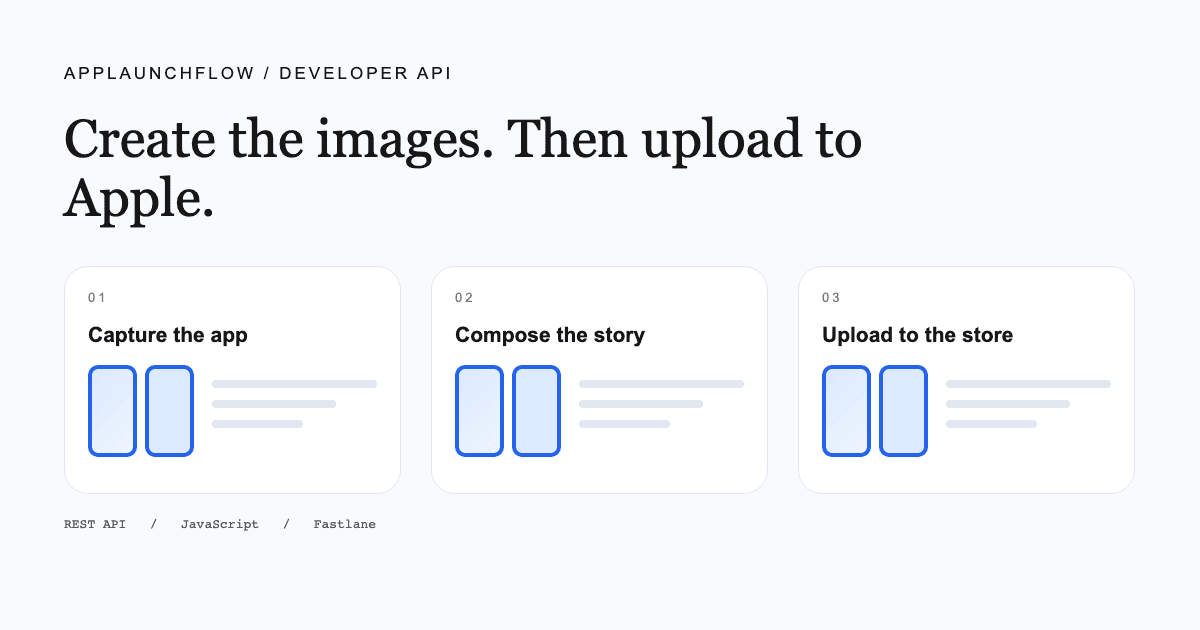
Apple's App Store Connect screenshot API uploads and manages screenshots for an app's store listing. It does not capture your running app or design marketing images. A complete workflow first produces the final files, then uploads them to the correct localization and display target.
That distinction matters when you search for an “App Store screenshot API.” You may need a creative rendering service, Apple's upload endpoints, or both. This guide separates those jobs and explains where AppLaunchFlow and Fastlane fit.
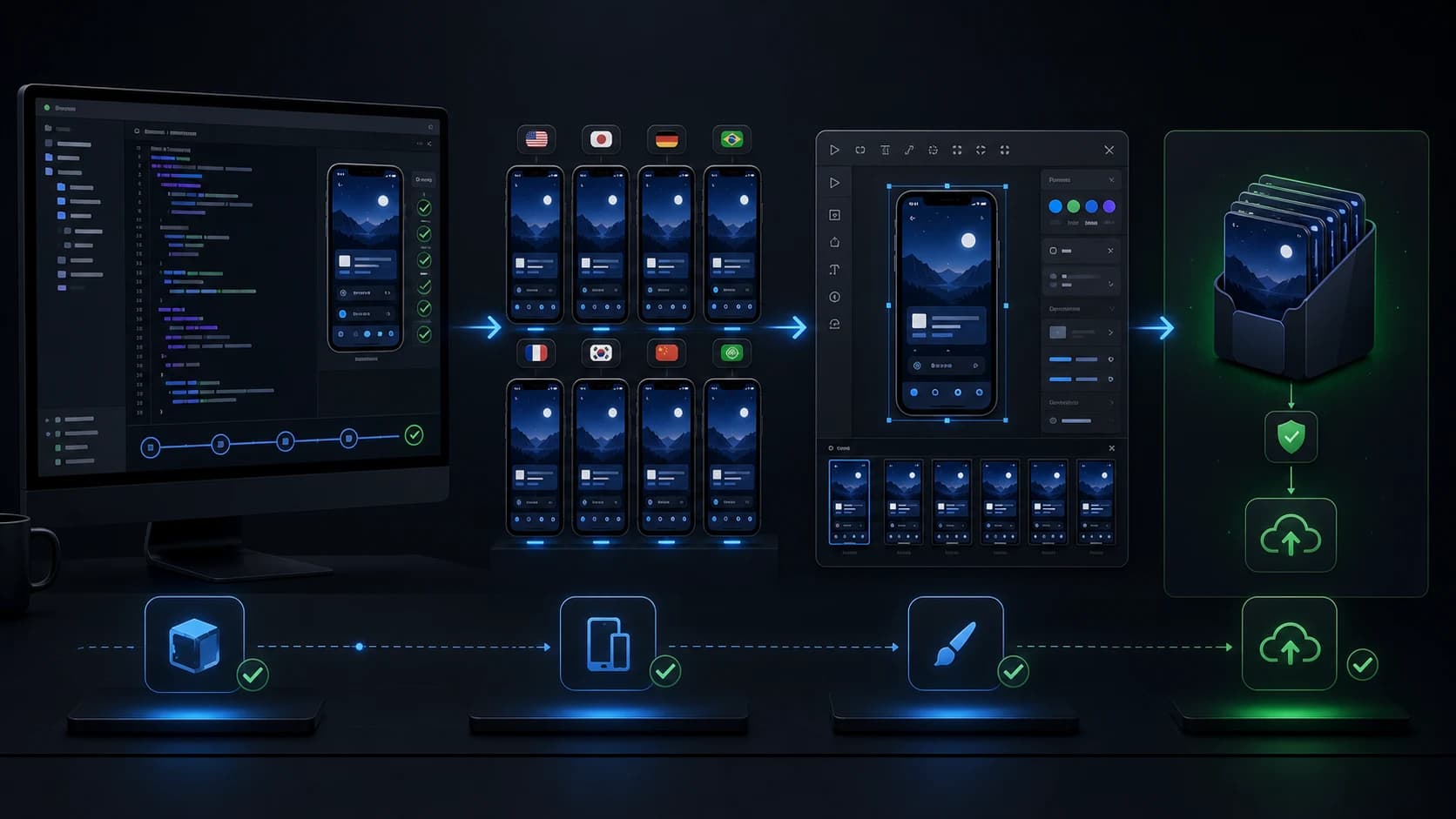
- Capture
Your running app → real UI images
- Compose
AppLaunchFlow → localized marketing PNGs
- Upload
App Store Connect → processed listing assets
Which screenshot API do you need?
| Your task | Appropriate tool | Result |
|---|---|---|
| Capture a specific screen in your app | UI tests, simulator tooling, or Fastlane snapshot | A raw screenshot of a real app state |
| Apply layout, captions, frames, and localized copy | AppLaunchFlow screenshot API | Rendered marketing images and a validated package |
| Attach images to an App Store listing | App Store Connect API or Fastlane deliver | Uploaded and processed screenshot resources |
| Upload Android store screenshots | Google Play publishing tooling or Fastlane supply | Images attached to the intended Play listing |
If your images are already finished, adding another renderer may not help. Start with the upload tooling. If each release involves manually replacing captures inside designs, updating translated captions, and exporting multiple sizes, the AppLaunchFlow screenshot API addresses that production work.
Do not confuse this workflow with a website screenshot API either. Capturing the pixels of a public URL is a different task from creating a composed App Store screenshot with editable copy and device layouts.
How Apple's screenshot upload sequence works
Apple groups screenshots by localization and display target. Locate or create the appropriate screenshot set, reserve an app screenshot resource, execute the upload operations returned by Apple, and commit the upload with the required checksum information. Inspect processing status afterward; completion of a file transfer is not sufficient evidence that the image is ready.
Apple documents the resource model in App Screenshots and the transfer sequence in Uploading Assets to App Store Connect. Follow those contracts for a direct integration instead of assuming a single multipart POST attaches a finished image.
A direct integration also needs authenticated access to the intended app and a way to reconcile a partially completed batch. Keep the app identifier, target version, locale, screenshot set, local filename, and remote resource ID together in your job record. That mapping makes a failed upload easier to recover without replacing the wrong image.
Prepare the image package before touching the listing
Start from a release plan: the app, the intended version, the locales you actually support, the display targets, and the ordered screenshot story. Keep the capture names and design slots stable so a feature update replaces the intended screen rather than shifting the entire sequence.
For each locale, inspect both marketing text and the app interface inside the screenshot. An English capture under a translated headline may be intentional, but it should be a reviewed choice. If the app UI itself is localized, capture that state and use it in the matching layout.
AppLaunchFlow's validated render workflow takes the project ID, optional existing variant ID, saved language codes, and requested format IDs. It rejects missing requested layouts and produces a package with a manifest and checksums. Follow the render API tutorial to create that package.
The distinction between a valid file and a suitable listing image remains important. Technical checks can identify an incorrect pixel size or broken PNG. They cannot establish that your app genuinely provides the feature advertised by a headline. Read the final screenshots as a prospective customer would.
Use Fastlane when it already owns your release workflow
If you already maintain Fastlane configuration, use its upload support instead of building a second Apple client solely for screenshot transfer. Keep app selection and store credentials in the existing lane. AppLaunchFlow's package provides iOS locale folders under fastlane/screenshots.
bundle exec fastlane deliver \
  --screenshots_path output/fastlane/screenshots \
  --skip_binary_upload true \
  --skip_metadata true
This command writes to App Store Connect when executed. Confirm the configured app and version first. It assumes your files have already been rendered, downloaded, extracted, and reviewed. The deliver reference describes upload options and configuration.
For a broader setup, use the Fastlane screenshot automation workflow. If you only need the capture foundation, the existing Fastlane screenshots guide explains the roles of snapshot, frameit, and deliver.
Verify the destination, not just the HTTP response
A successful render proves that you have generated an image package. A successful download proves that you received its bytes. A successful upload response proves another step. None of these alone proves that the correct app listing displays the expected screenshot sequence.
Make the final check concrete: inspect the intended app and version in App Store Connect, open the relevant localizations and display groups, and compare the order and content against the approved package. Check processing errors before considering the screenshot portion of the release complete.
- Verify that the first screenshot is the approved first image for each locale.
- Check that a replacement did not leave an outdated image in another display group.
- Confirm that translated captions match the intended regional wording.
- Keep the approved ZIP, configuration, and render receipt with the release record.
- Separate uploading assets from submitting an app version for review.
These checks are particularly useful when an upload is interrupted. You need to know what reached the store before deciding whether to retry, replace, or remove anything. Prefer an explicit comparison of the expected set with the destination state over blindly replaying every operation.
Keep credentials and responsibilities separate
An AppLaunchFlow key authorizes work in an AppLaunchFlow project. It is not an Apple API key. Keep rendering credentials in the render environment and store-upload credentials in the release environment. A team can let developers generate candidate assets while retaining a separate approval step for publishing.
The GitHub Actions example follows that division: it exports reviewable artifacts without uploading them. Add the upload step only when your app selection, credentials, review process, and retry behavior are ready.
Frequently asked questions
Does Apple's App Store Connect API generate screenshot designs?
No. Apple's screenshot API manages screenshot resources and uploads for app localizations and display targets. Create the final images with your capture and design workflow before uploading them.
What are the steps in an App Store screenshot upload?
Locate the target screenshot set, reserve an app screenshot resource, perform the returned upload operations, and commit the upload with the required checksum information. Then inspect its processing status before treating it as ready.
Can AppLaunchFlow prepare the images for Fastlane?
Yes. The screenshot render API generates a validated package with locale directories under fastlane/screenshots for iOS and fastlane/metadata/android for Google Play. Fastlane performs the store upload separately.
Reference
Use AppLaunchFlow's public API reference for generation and rendering contracts. Use Apple's documentation linked above for upload resources, and its current screenshot specifications for destination requirements. Recheck requirements when adding a new device target rather than copying an old size table.