Yannick
Use GitHub Actions to request a screenshot package from AppLaunchFlow, verify the download, and retain the output for review. The workflow below runs on Ubuntu because it renders saved designs remotely. It does not run an iOS simulator or upload anything to the stores.
The useful release artifact is more than a ZIP: it includes the render receipt and configuration that identify exactly which operation ran. Keeping those together makes a retry recoverable and gives reviewers a practical handoff.
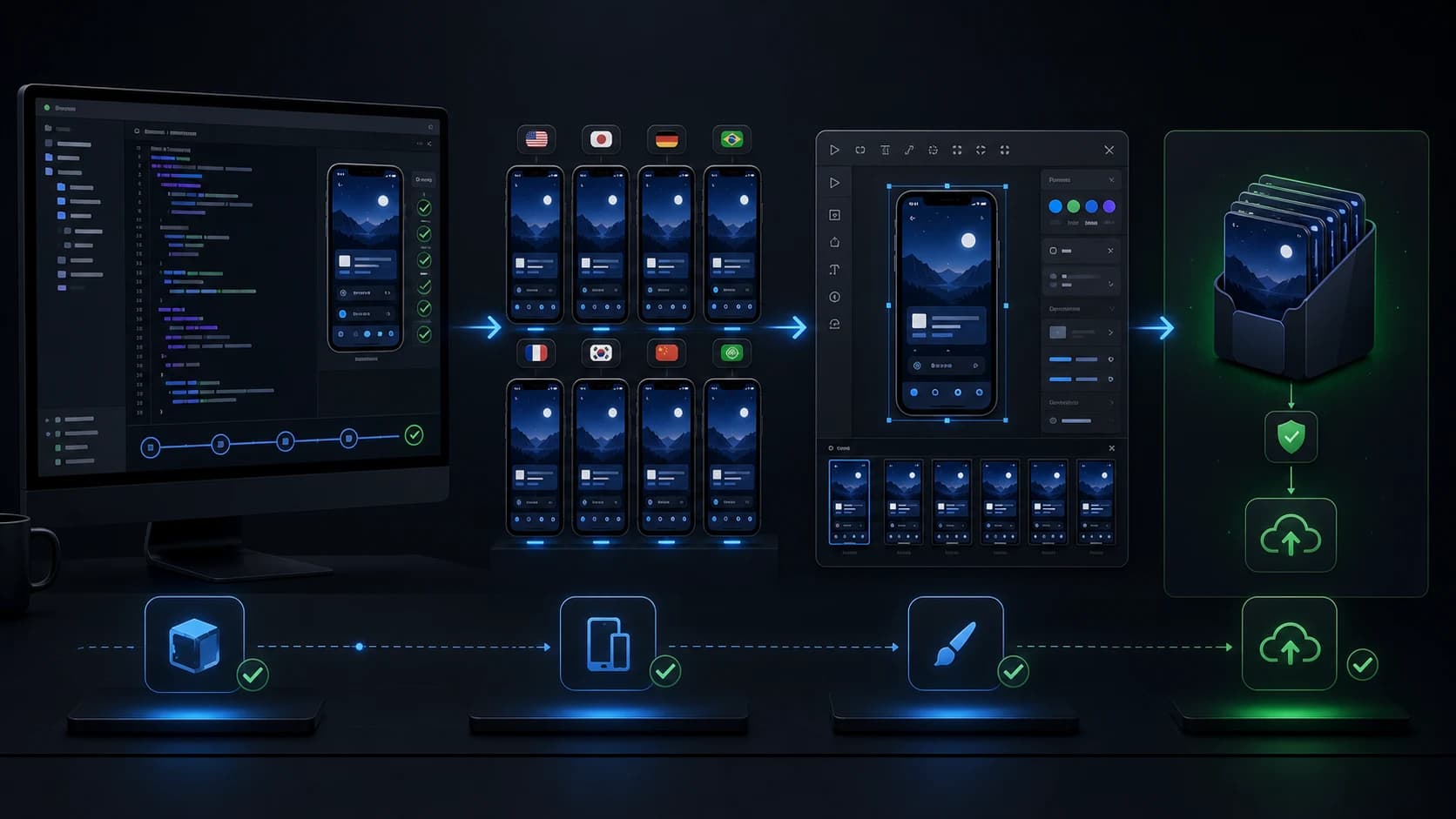
- 01
Capture
Your UI tests produce real app screens.
- 02
Design
Save layouts and localized copy in AppLaunchFlow.
- 03
Render
The API builds a validated screenshot package.
- 04
Release
Review the images, then upload through Fastlane.
1. Prepare the project and repository
First, save your screenshot design and required translations in AppLaunchFlow. Create a project-restricted key with export read and write permissions. Add it to GitHub Actions secrets as APPLAUNCHFLOW_API_KEY. Keep it out of the repository, workflow logs, and generated artifacts. GitHub's secret configuration guide covers repository and environment secrets.
Copy release.mjs and unpack-release.py from the official examples into your repository's examples/ directory. Review and commit those helpers so your workflow runs a known revision rather than downloading changing scripts on every release.
npm install --save-exact applaunchflow@0.7.0Commit the resulting package manifest and lockfile. The workflow uses npm ci to install that locked dependency graph. This example assumes npm; adapt both the cache setting and installation command if your repository uses another package manager.
{
  "projectId": "11111111-1111-4111-8111-111111111111",
  "languages": [
    "en",
    "de"
  ],
  "formats": [
    "ios.phone.6.9",
    "android.phone"
  ],
  "package": "fastlane"
}
Use saved language codes and formats supported by the API. Include an existing variantId if you need to select a specific screenshot variant. If your project is not ready yet, complete the first-render tutorial before adding CI.
2. Add a manually triggered screenshot workflow
Save this as .github/workflows/screenshots.yml. It takes a release identity as an explicit input, generates the package, validates extraction, and uploads diagnostic artifacts even when a later step fails. It deliberately keeps store upload as a separate decision.
# Save as .github/workflows/screenshots.yml on your default branch.
# Setup: https://www.applaunchflow.com/blog/app-store-screenshots-github-actions
# Required: APPLAUNCHFLOW_API_KEY repository secret, release.json,
# examples/release.mjs, examples/unpack-release.py, and a committed npm lockfile
# with applaunchflow@0.7.0 installed. See the setup guide for the helpers.
# Render saved designs only; app capture and store upload are separate steps.
name: Screenshot release package
on:
  workflow_dispatch:
    inputs:
      release_id:
        description: Stable release identity; reuse for retries
        required: true
        type: string
permissions:
  contents: read
concurrency:
  group: applaunchflow-screenshot-project
  cancel-in-progress: false
jobs:
  render:
    runs-on: ubuntu-latest
    timeout-minutes: 40
    steps:
      - uses: actions/checkout@v7
        with:
          persist-credentials: false
      - uses: actions/setup-node@v7
        with:
          node-version: "24"
          cache: npm
      - uses: actions/setup-python@v7
        with:
          python-version: "3.12"
      - name: Check release setup
        env:
          APPLAUNCHFLOW_API_KEY: ${{ secrets.APPLAUNCHFLOW_API_KEY }}
          RELEASE_ID: ${{ inputs.release_id }}
        run: |
          node --input-type=module <<'NODE'
          import { readFileSync, accessSync } from "node:fs";
          if (!process.env.APPLAUNCHFLOW_API_KEY?.trim())
            throw new Error("Add the APPLAUNCHFLOW_API_KEY repository secret.");
          if (!process.env.RELEASE_ID?.trim())
            throw new Error("Enter a stable, non-empty release_id.");
          for (const path of ["examples/release.mjs", "examples/unpack-release.py", "package-lock.json"])
            accessSync(path);
          const config = JSON.parse(readFileSync("release.json", "utf8"));
          if (!config.projectId || config.projectId === "11111111-1111-4111-8111-111111111111")
            throw new Error("Set your AppLaunchFlow project ID in release.json.");
          for (const key of ["languages", "formats"])
            if (!Array.isArray(config[key]) || !config[key].length)
              throw new Error("Set at least one saved " + key + " entry in release.json.");
          if (config.package !== "fastlane")
            throw new Error("This example expects package: fastlane.");
          NODE
      - run: npm ci
      - name: Render saved layouts
        env:
          APPLAUNCHFLOW_API_KEY: ${{ secrets.APPLAUNCHFLOW_API_KEY }}
          APPLAUNCHFLOW_RELEASE_ID: ${{ github.repository }}:screenshots:${{ inputs.release_id }}
        run: node examples/release.mjs release.json release.zip
      - name: Validate and extract
        run: python3 examples/unpack-release.py release.zip output
      - name: Keep output and retry receipt
        if: always()
        uses: actions/upload-artifact@v7
        with:
          name: screenshots-${{ github.run_id }}-${{ github.run_attempt }}
          path: |
            release.zip
            release.zip.receipt.json
            release.json
            output/
          if-no-files-found: warn
          retention-days: 7
Download the example workflow or view the source on GitHub, then save it on your repository's default branch. After completing the setup above, open GitHub's Actions tab, choose Screenshot release package, click Run workflow, and enter a release ID such as v2.4.0-screenshots-1. The job checks your configuration before submitting a render.
The actions use readable major-version tags here. Teams that pin third-party actions to commit SHAs should apply their normal dependency-review policy. The Node client version is pinned in your repository lockfile.
3. Keep the same identity across retries
Choose a release_id such as v2.4.0-screenshots-1. Reuse it when rerunning the same export with unchanged parameters. The helper hashes the combined repository, workflow purpose, and input identity into an idempotency key.
A GitHub run attempt is useful for naming output artifacts, but it should not define the API operation identity: it changes when you retry. The example therefore includes github.run_attempt only in the artifact name. A new attempt can still recover the original render.
When you intentionally change the design, source captures, or export selection, use a new release identity. Reusing an old key is a request to recover the old operation, not a request to render the latest state again. If the request body changed, the API returns a conflict instead of guessing which operation you meant.
4. Avoid two release jobs writing the same project
The concurrency group permits only one active job in that group in the repository. cancel-in-progress: false avoids interrupting the current job when another run arrives. With GitHub's default concurrency behavior, a newer pending run may replace an older pending one; this example is not a durable queue for every release. See GitHub's concurrency documentation.
If several workflows write the same AppLaunchFlow project, give them the same project-specific group. Different repositories need their own coordination. A cancelled runner also does not cancel a remote export, so inspect the retained render ID before allowing another workflow to replace source files.
The example only renders saved content. If you add capture uploads or copy edits, finish them before submitting the render, and keep the same variant ID throughout. Layout input is retained for an accepted job, but source asset bytes are not immutable snapshots.
5. Review artifacts, then upload with store credentials
Download the workflow artifact and inspect the extracted images at their actual dimensions. Review first-screen messaging, screenshot order, localized text, device selection, and clipping. Compare the manifest's project and variant with the app release you intend to publish.
The official client checks the ZIP checksum. The extractor checks the manifest, individual file checksums, paths, sizes, and image integrity. These checks help prevent a broken handoff; they do not replace visual review or certify store acceptance.
After approval, hand the output directory to your existing Fastlane upload job. The Fastlane integration guide shows both iOS and Android commands. Keep Apple and Google credentials in that upload environment rather than exposing them to the render job. For Apple's resource model, read the App Store Connect screenshot API guide.
6. Make failures actionable
| Symptom | Next action |
|---|---|
| 401 authentication error | Check secret configuration, key expiration, and revocation. Never print the key to logs. |
| 403 scope or subscription error | Verify project scope, export permissions, and an active Unlimited plan. |
| 402 export allowance exhausted | Check account usage and renewal, or add Automation. Retain the original retry identity. |
| 409 conflict | Compare the original request body and operation key before submitting changed inputs. |
| Missing language or device layout | Save the requested layouts and submit a new corrected operation. |
| Polling timeout | Keep the receipt and inspect the same render. Timeout does not mean cancellation. |
| Indeterminate dispatch | Investigate the job and request IDs before creating another export. |
Set retention according to the sensitivity of your app screenshots and the time your team needs to review a release. The sample keeps artifacts for seven days. Screenshots can contain unreleased features or test-account information even when no API secrets are included.
Frequently asked questions
Do I need a macOS runner for screenshot rendering?
Not for the API rendering step. The example runs on Ubuntu because AppLaunchFlow performs the rendering remotely. Capturing an iOS app with Xcode or a simulator is a separate step that needs an appropriate macOS environment.
Does rerunning a GitHub Actions job spend another API export?
A retry with the same idempotency key and request body recovers the same render. Preserve the release identity across attempts. A new identity creates a new operation, and reusing a key with changed render parameters returns a conflict.
Does this workflow upload screenshots to the stores?
No. It produces a verified ZIP and extracted files as CI artifacts. Add a separate reviewed upload step using your existing Fastlane configuration and store credentials.
Source code and API reference
The workflow calls the published AppLaunchFlow API through the official release helpers. It is a starting point for rendering an existing project; your capture tests and store upload remain separate parts of the release.