Yannick
An App Store screenshot API turns saved designs and real app captures into images your release pipeline can use. With AppLaunchFlow, you choose a project, its saved languages, and the device formats; the API returns an asynchronous render job and a validated Fastlane package.
This guide starts with an existing screenshot design and finishes with files ready for review. It uses the public v1 API and the published JavaScript client. It does not assume the API can run your app, translate its interface, or submit it to a store.
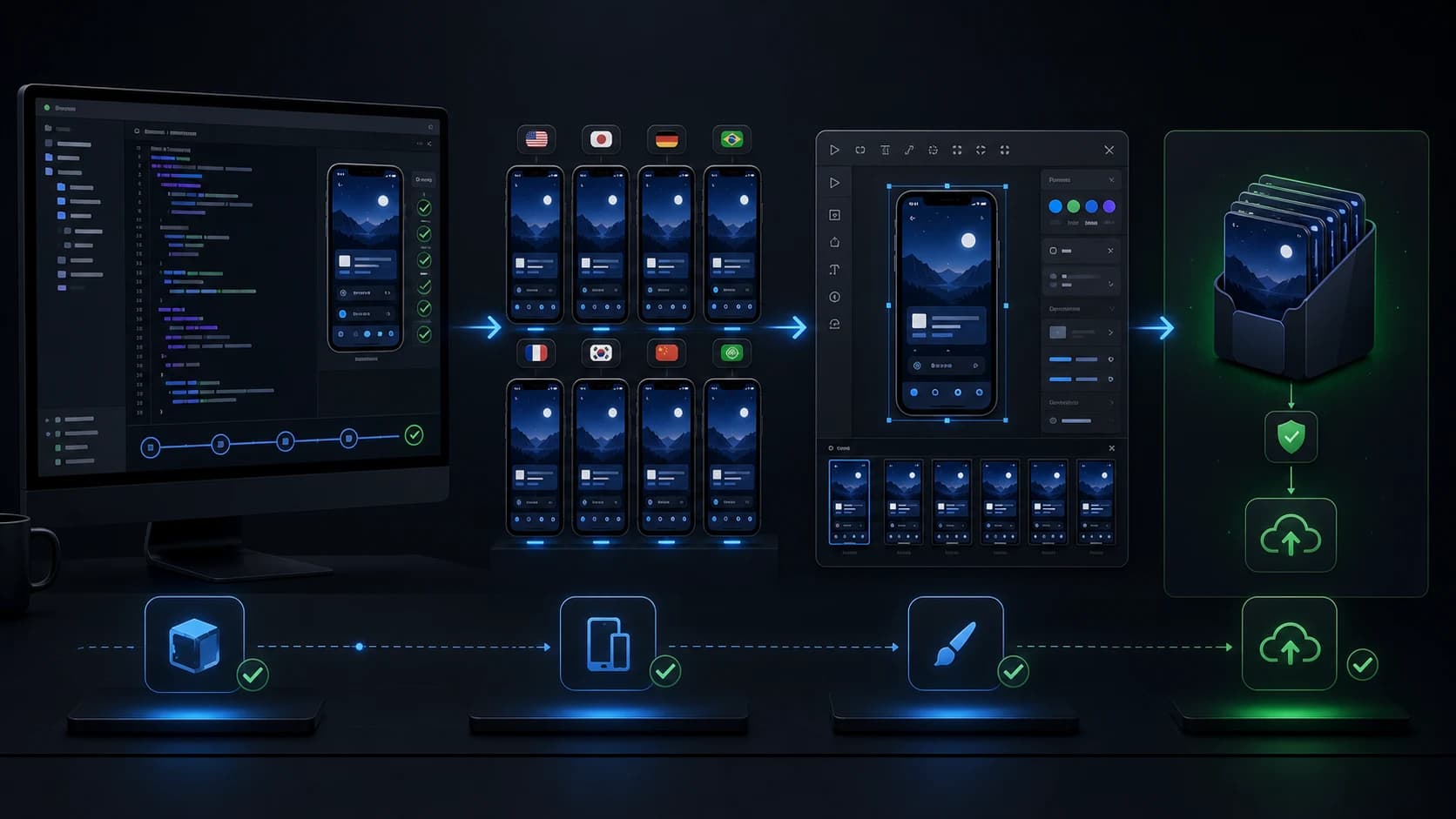
- 01
Capture
Your UI tests produce real app screens.
- 02
Design
Save layouts and localized copy in AppLaunchFlow.
- 03
Render
The API builds a validated screenshot package.
- 04
Release
Review the images, then upload through Fastlane.
1. Prepare a real project and a restricted API key
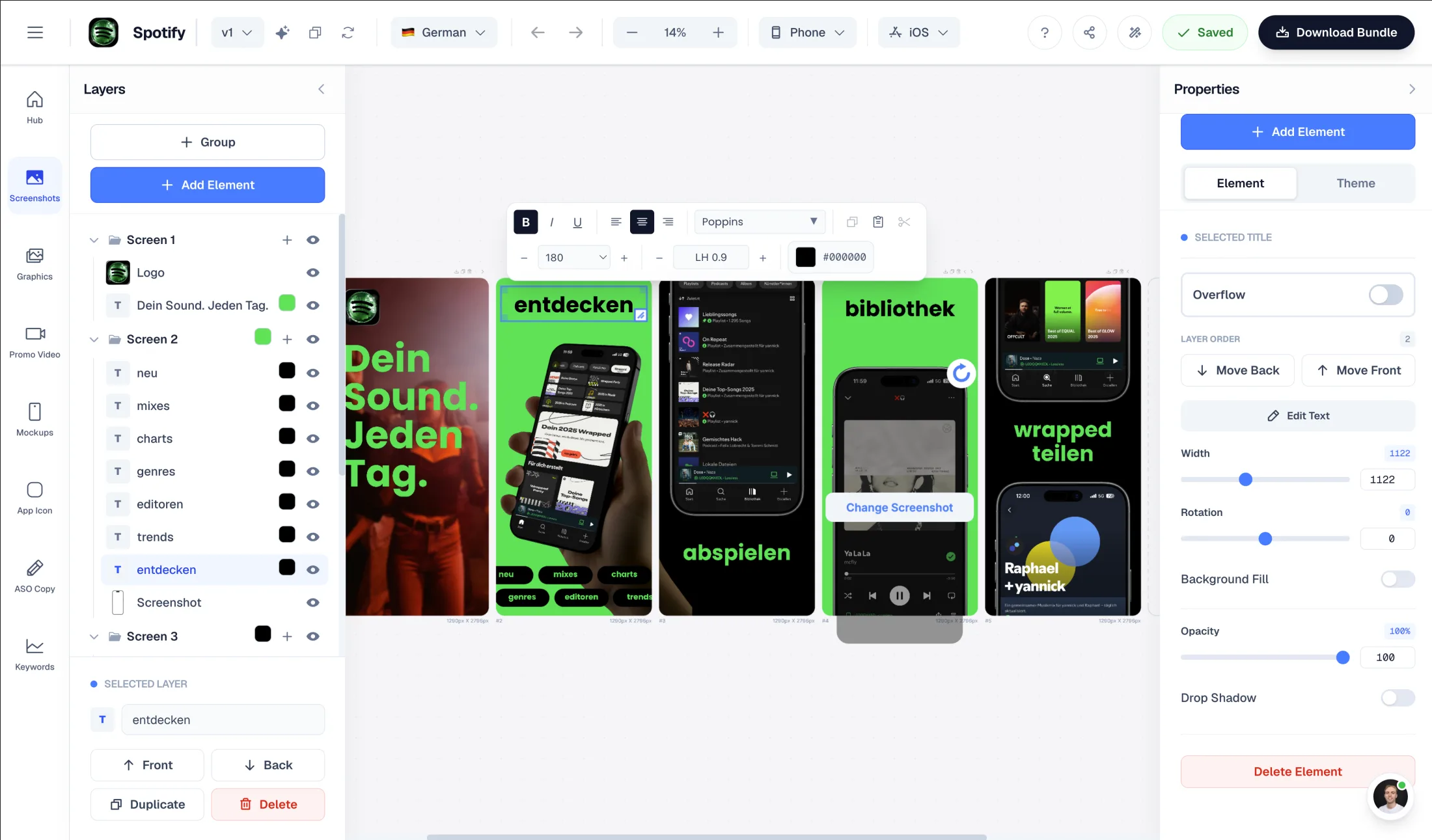
Upload real screenshots, choose a design, and save the layout in the AppLaunchFlow editor. Review the phone and tablet compositions separately if you plan to export both. A phone layout is not a substitute for a missing tablet layout.
Open the project's Developer API section as its owner. Create a key restricted to that project. For rendering and download, grant exports:write and exports:read. Add project, asset, or design scopes only if your script reads or edits those resources. Store the secret in an environment variable or your CI secret store.
The API requires an active Unlimited subscription (€15/month or €99/year) and includes 5 API export jobs per monthly allowance period, shared across projects and keys. Automation adds unlimited API exports for €19/month on top of Unlimited. Rate limits, job-size limits, and AI generation credits still apply. Free and Launch Pass do not include API access. Before starting a batch, read GET /api/v1/account/usage to inspect remaining exports and the renewal time. One job covers its requested language and format matrix; it is not one charge per image.
2. Describe the output in a small configuration file
Save the following as release.json. Replace the example UUID with your project ID. Use the language codes saved in the selected screenshot variant; in this example the project has en and de. Query GET /api/v1/formats to inspect the supported device formats and store locale mappings.
{
  "projectId": "11111111-1111-4111-8111-111111111111",
  "languages": [
    "en",
    "de"
  ],
  "formats": [
    "ios.phone.6.9",
    "android.phone"
  ],
  "package": "fastlane"
}
Without a variant ID, rendering uses the active screenshot variant. If a workflow also changes designs, resolve the intended variant once and pass that existing variantId to its edits and render request. This avoids an active-variant switch between calls. It does not freeze the underlying source images.
Set APPLAUNCHFLOW_API_KEY privately. Set APPLAUNCHFLOW_RELEASE_ID to a stable identifier of 8–128 characters for this operation, such as a release tag plus the job purpose. Then submit the request:
curl --fail-with-body \
  https://dashboard.applaunchflow.com/api/v1/renders \
  -H "Authorization: Bearer $APPLAUNCHFLOW_API_KEY" \
  -H "Content-Type: application/json" \
  -H "Idempotency-Key: $APPLAUNCHFLOW_RELEASE_ID" \
  --data @release.json
A successful submission returns HTTP 202. Raw REST responses wrap the result in data, with a request ID in meta. Save data.id and data.statusUrl. The request has been accepted; the images are not necessarily ready yet.
3. Poll the job and verify the package
The job lifecycle helps you decide whether to wait, inspect output, or investigate. A successful HTTP response when submitting a job is not the same as a successful render.
| Job status | Meaning for your client | Next action |
|---|---|---|
queued, dispatching, rendering | The job has not reached a final result | Keep polling the same job with bounded retries and a deadline |
succeeded | The package is ready | Read the manifest, obtain a download descriptor, and verify the ZIP |
failed, cancelled | The operation ended without a usable successful result | Inspect the returned error and retain job/request IDs before choosing a new operation |
indeterminate | Dispatch outcome is uncertain | Investigate the existing operation; do not automatically create a new paid job |
Request the returned status URL with the same bearer key. Wait for succeeded, respecting rate limits and any Retry-After response. Stop and investigate terminal failed, cancelled, or indeterminate states. A CI timeout alone does not cancel a render.
After success, fetch the manifest and download descriptor. The descriptor contains a short-lived URL, the ZIP's SHA-256 checksum, and its byte size. Download the URL without forwarding the API key to the storage host. Verify both size and checksum before extraction.
The official release examples implement this sequence. Copy release.mjs and unpack-release.py into an examples directory in your integration repository. Review them, install the published client, and commit your dependency lockfile:
npm install --save-exact applaunchflow@0.7.0
node examples/release.mjs release.json release.zip
python3 examples/unpack-release.py release.zip output
The helper also needs APPLAUNCHFLOW_API_KEY and APPLAUNCHFLOW_RELEASE_ID. It writes a receipt beside the ZIP before waiting. Keep that receipt if the process stops. Use a fresh output path and extraction directory; the helpers intentionally avoid overwriting an existing release package.
4. Know what validation proves
| Checked by the package workflow | Still checked by your team |
|---|---|
| Expected files and exact dimensions | The right app screen is shown in each slot |
| PNG integrity and opaque pixels | Text readability, clipping, and device composition |
| File limits and checksums | Translation quality and destination-store policies |
| Fastlane paths and locale mapping | Correct app, version, and store credentials for upload |
Inspect the manifest together with the actual images. Package validation is valuable because it catches mechanical errors before upload, but it cannot decide whether a German headline reads naturally or whether the first image communicates your app's main benefit.
5. Keep translated copy and captured app UI aligned
There are two localization inputs: the marketing text in the design and the app UI inside the capture. Translating a headline does not change an English screen image. Capture localized app states where appropriate, then save each localized composition before requesting the export.
A missing requested translation or device layout fails validation instead of silently reducing the output set. Avoid asking for two language aliases that map to the same store directory. For example, a base language and a regional code can refer to the same destination; use the format catalog to plan one unambiguous output per locale.
Batch within the documented limits: up to 40 languages and 800 files, with no more than 10 screenshots per iOS format and 8 per Android format. As a planning example, six screens × ten languages × three formats produces 180 files. This arithmetic helps estimate a batch; it is not a render-speed promise. The localization workflow covers the creative review.
6. Retry the operation, not the bill
Reuse the same idempotency key and unchanged body when a request or network connection is interrupted. A repeated operation can recover its existing render. A changed body with the old key produces a conflict. To export a genuinely new set of edits, create a new release identity.
Do not turn every failure into a new POST with a random key. Save request IDs and render IDs, check the current state, and distinguish rejected input from a render whose dispatch outcome is uncertain. The latter needs investigation before a new paid operation.
Layout changes are visible in the editor. Accepted jobs retain the submitted layouts, but source files remain in project storage and their bytes are mutable. Sequence writes before rendering and keep source assets stable until the export finishes. Use the GitHub Actions guide to retain receipts and serialize release jobs.
7. Hand reviewed assets to the upload tool
The ZIP contains iOS assets under fastlane/screenshots/LOCALE and Android assets under fastlane/metadata/android/LOCALE/images. Use the Fastlane integration workflow to send approved output to the stores. Apple's upload API is a separate system with separate credentials; see the App Store Connect screenshot API guide for that boundary.
Frequently asked questions
Can I render screenshots with a single API request?
One POST /api/v1/renders request starts a job for the selected saved languages and formats. Rendering is asynchronous: poll the job and download the validated package after it succeeds. The request does not capture your app or create missing translations.
What happens if a saved translation is missing?
The validated render workflow rejects missing requested languages or device layouts before dispatch. Save the required translation and layout, then submit the corrected request using a new operation key.
How are API exports billed?
The API requires an active Unlimited subscription (€15/month or €99/year) and includes 5 API export jobs per monthly allowance period, shared across projects and keys. Automation adds unlimited API exports for €19/month on top of Unlimited. Rate limits, job-size limits, and AI generation credits still apply. Free and Launch Pass do not include API access.