Yannick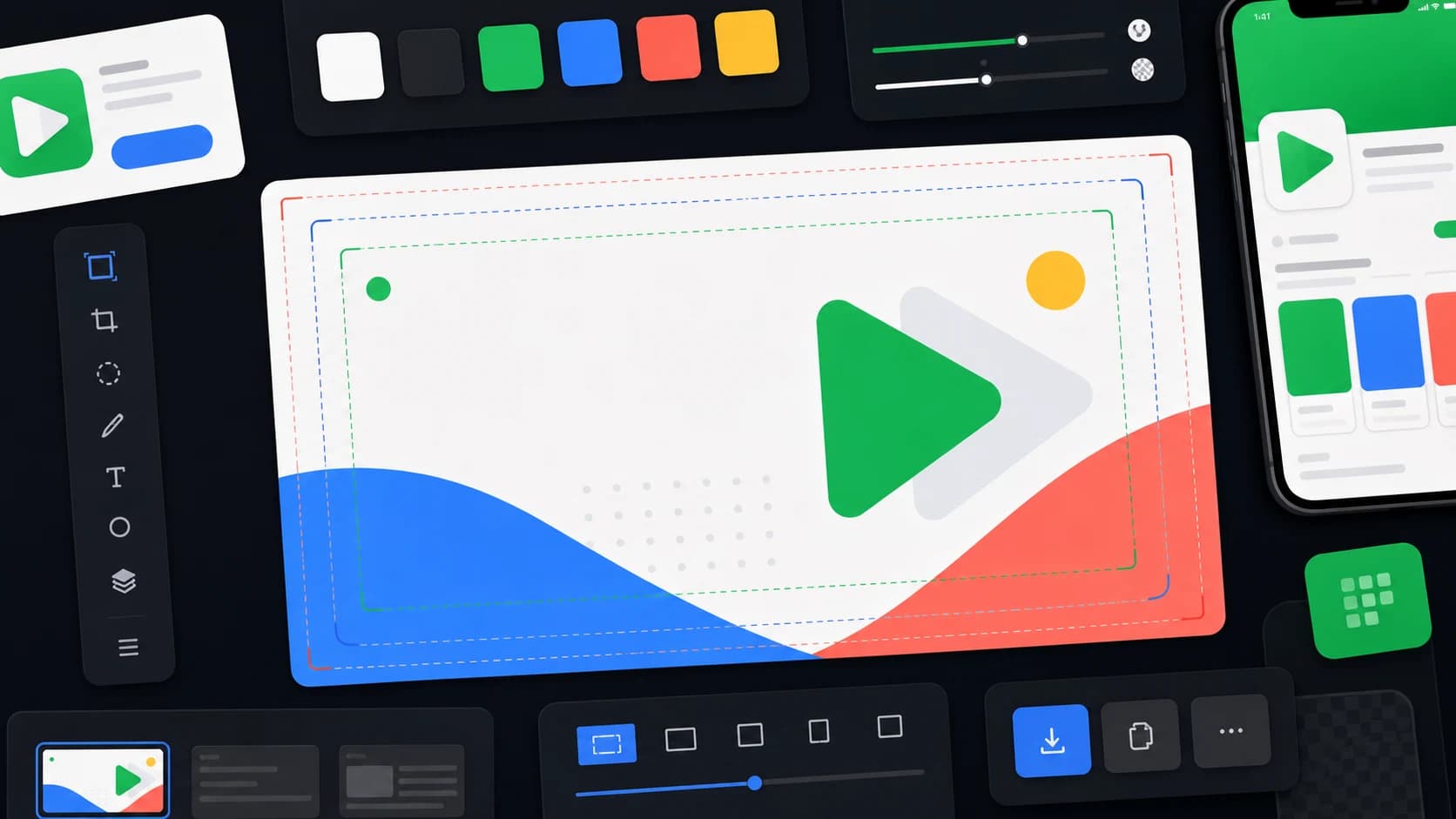
Feature graphic essentials
Three rules before you open an editor
One idea, centered
Single message near the center so every crop keeps it visible.
Design for thumbnails
The graphic is mostly seen small — test at 25% zoom.
Export to spec
Exactly 1024 × 500, JPEG or 24-bit PNG, no alpha channel.
The feature graphic is the 1024 × 500 banner Google Play shows at the top of your listing when you have a promo video, and across recommendation and editorial surfaces. It is required for several promotional placements, which makes it the highest-leverage single image in a Play Store listing. Here is the five-step process, with every store rule applied.
The free tool lets you arrange your own artwork and text. Studio starts the personalized graphics workflow with the Play Store feature format selected; this example is not imported.
Step 1: Start from your app, not a blank canvas
Collect your app icon, one or two of your strongest screenshots, and the single benefit your listing leads with. The feature graphic should read as the cover of the same story your screenshots tell — reusing their colors, typography, and product imagery is what makes a listing look intentional.
Step 2: Pick one focal idea and center it
A 1024 × 500 banner has room for exactly one message: a product visual plus a short benefit line, an icon-led brand banner, or an outcome shot. Place the essential subject and text near the center — Google crops the graphic differently across surfaces, and edge content is the first thing to disappear.
Step 3: Respect the play-button safe zone
If your listing has a promo video, Google overlays a play button in the middle of the feature graphic. Keep critical text out of the exact center, or design a composition that still reads with a button on top. Preview both states before you commit.
Step 4: Check it at thumbnail size
The graphic appears in recommendation cards far smaller than 1024 × 500. Zoom out to roughly 25% and check: is the message still readable? Fine UI detail, thin fonts, and busy backgrounds all fail this test — simplify until the thumbnail version works.
Step 5: Export to spec and localize
Export exactly 1024 × 500 as JPEG or 24-bit PNG without alpha transparency. Then create localized versions for the markets that matter — same composition, translated copy. Google recommends localized store assets for supported languages, and the feature graphic is the most visible one.
The fastest way: generate it from your screenshots
In AppLaunchFlow's feature graphic generator, you arrange existing artwork, set a headline and download an opaque 1024 × 500 PNG. Use Studio for personalized graphics templates from your app screenshots, editable layers and localized variants. Check the final crop and content in Play Console; neither workflow guarantees review approval.
Common reasons feature graphics fail
- Wrong file: transparency (alpha channel) or a size other than 1024 × 500.
- Text at the edges that disappears in cropped placements.
- Store badges, rankings, prices, or call-to-action buttons in the artwork — Google's guidelines advise against promotional claims and store-UI imitation.
- A graphic that just enlarges the app icon instead of adding new information.
- Tiny UI screenshots that turn to noise at thumbnail size.
- A style that clashes with the screenshots below it, making the listing look assembled from different apps.
Official sources
Next reads: the full size and spec guide, examples and template patterns, and the generator comparison.
Practical deep dive
From first draft to uploaded asset
The five steps in the article cover composition. This section covers the production details that decide whether the asset clears review and keeps working after launch: file mechanics, the play-button overlay, and the acceptance checks worth running before every upload.
| Check | Requirement | Common failure | How to verify |
|---|---|---|---|
| Dimensions | Exactly 1024 × 500 px | Scaled exports at 2048 × 1000 or odd ratios | Inspect the exported file, not the canvas |
| Format | JPEG or 24-bit PNG, no alpha | PNG with transparency from design tools | Flatten onto an opaque background before export |
| Safe zone | Focal point and text near center | Headlines hugging the top or side edges | Preview at 25% zoom and in a center crop |
| Content rules | No badges, rankings, prices, CTAs | "#1 app" claims and Download buttons | Compare against Google's metadata policy |
Design around the play button, not despite it
When a listing has a promo video, Google overlays a play control on the center of the feature graphic. Compositions that treat the center as the video's stage — product imagery slightly off-center, headline in the upper third — stay readable in both states. Test the graphic with and without a simulated button before finalizing.
If you have no promo video yet but plan one, design for the overlay now. Replacing the feature graphic later means re-reviewing every localized variant.
Localize the graphic with the rest of the listing
Google supports per-locale store listings, and the feature graphic is the most visible localized asset. Keep the master as editable layers so each market swaps copy and, where needed, imagery without rebuilding the composition. Prioritize the markets where you already localize screenshots and descriptions — a translated description under an English feature graphic undercuts both.
Watch text expansion: German and French headlines run roughly 30% longer than English. A template that survives its longest planned locale will survive all of them.
Frequently asked questions
Can I upload a feature graphic without a promo video?
Yes. The graphic is required to show a video, but it also appears on promotional and recommendation surfaces on its own — every serious listing should ship one regardless of video plans.
Why does my feature graphic look cropped in the Play Store?
Google adapts the graphic to different placements and aspect ratios. Content near the edges is trimmed first — keep the essential subject and message near the center of the 1024 × 500 canvas.
Does the feature graphic affect conversion?
It is the largest visual element on listings with video and appears across Play discovery surfaces, so it materially shapes first impressions. Test variants with Google Play store listing experiments rather than guessing.
Sources and next steps
- Google Play: preview asset requirements
- Google Play: store listing best practices
- Google Play: store listing experiments
Continue with best feature graphic generators compared, feature graphic size guide, and feature graphic examples and templates.