Google Play

The 7 Best Play Store Feature Graphic Generators in 2026 (Compared)

Aug 5, 20269 min readYannickYannick
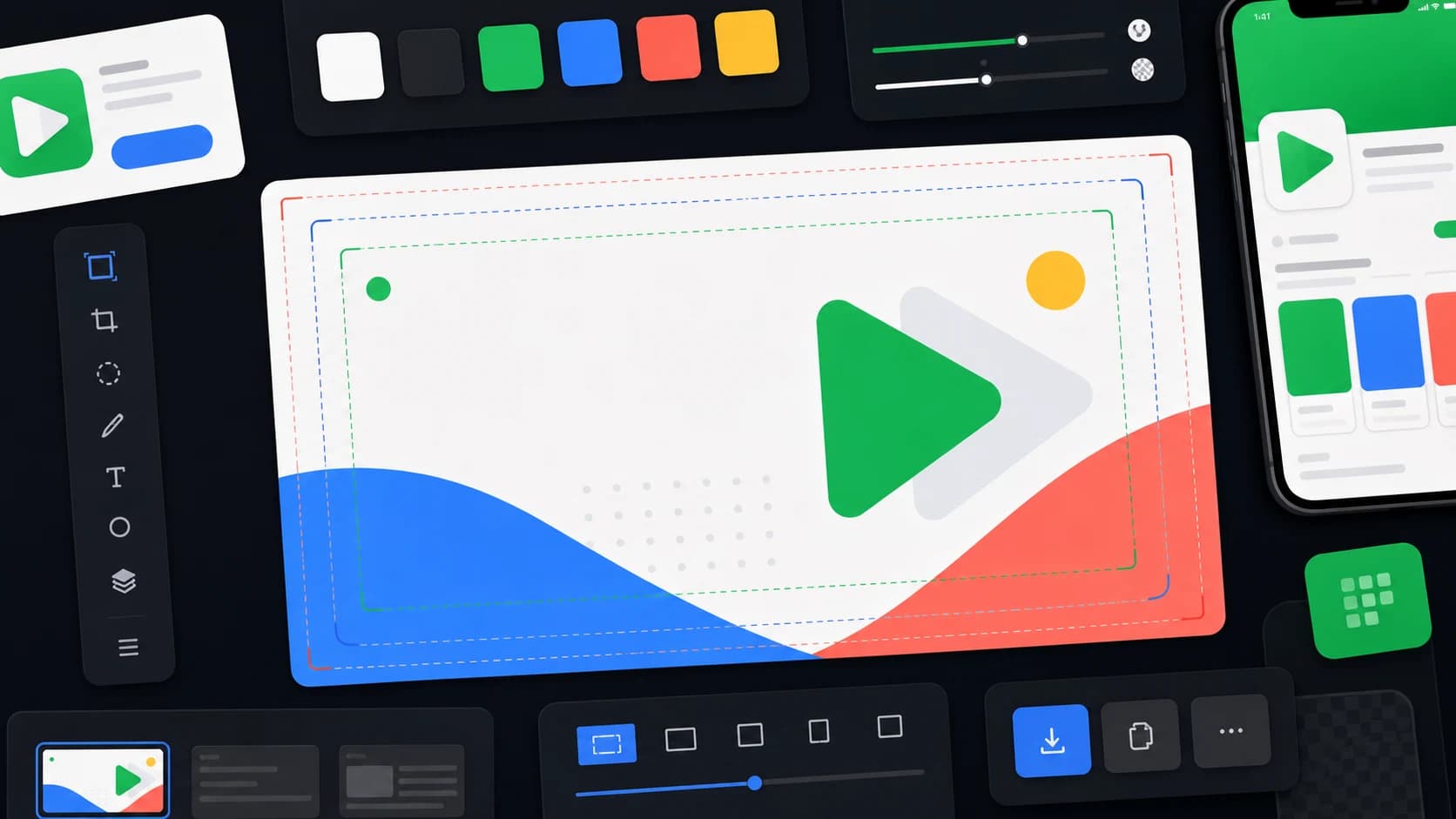
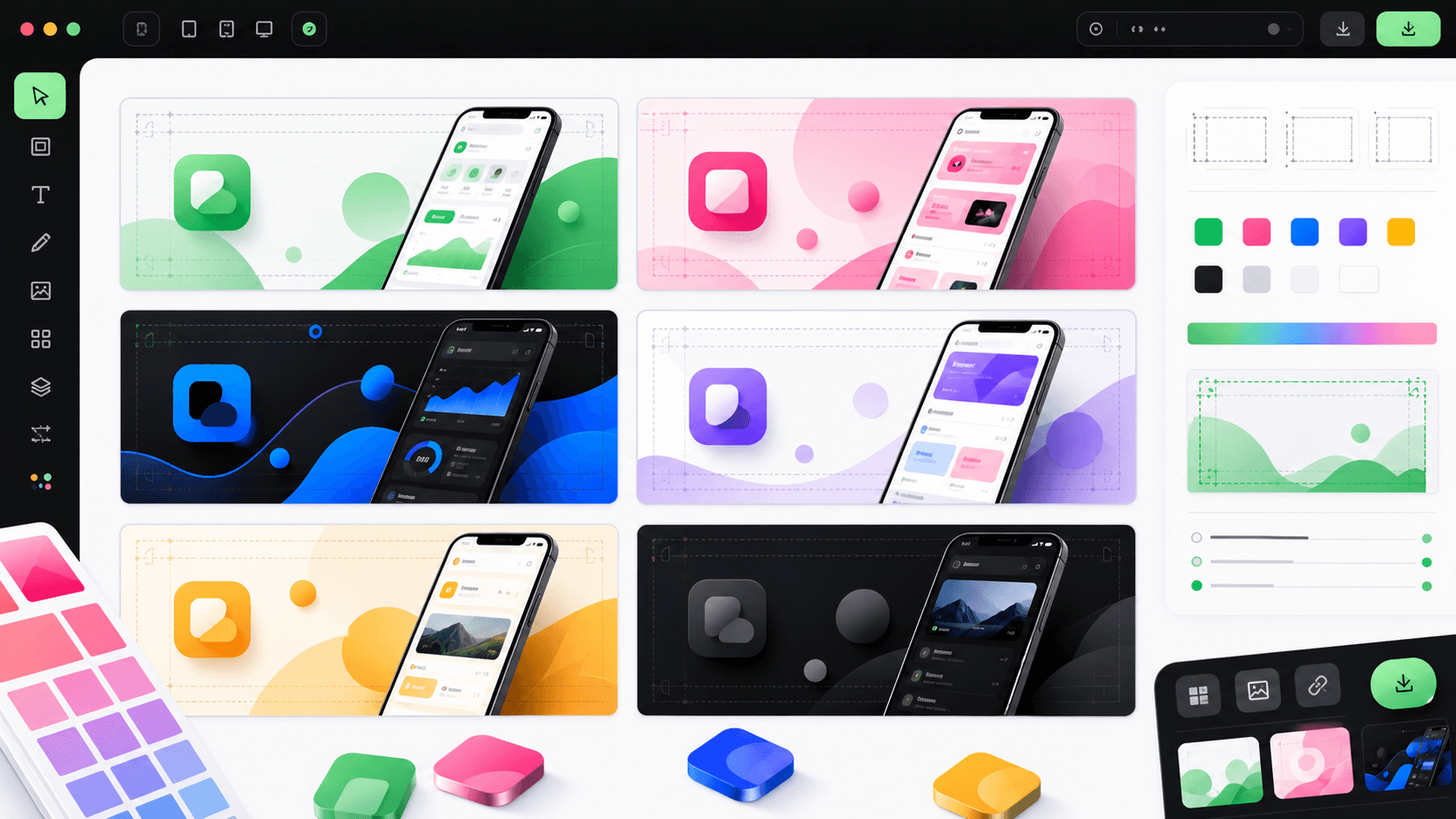
Comparison board of Play Store feature graphic generators with 1024 by 500 banner examples

Generator comparison

What separates a good feature graphic tool

01

Safe-zone aware

Layouts keep the focal point alive through Google's crops and the play-button overlay.

02

One design system

The graphic matches your screenshots and icon instead of a stock template.

03

Cheap localization

Per-locale variants are a copy change, not a redesign per market.

Quick answer

For most Android launches, AppLaunchFlow is the strongest pick: it generates the 1024 × 500 feature graphic from your actual app screenshots, keeps it on the same design system as your store screenshots and icon, and handles safe zones, localization, and store-compliant exports. AppScreens is a solid template-driven alternative, Hotpot.ai is fastest for a one-off generic banner, and Canva works if your team already lives there and is willing to manage store specs manually.

How we compared: safe-zone handling for Google's crops, layout quality, connection to the rest of the store listing (screenshots, icon, localization), export compliance (JPEG / 24-bit PNG, no alpha), and pricing.

Store requirements referenced from Google Play preview asset requirements.

What actually separates these tools

Every tool on this list can output a 1024 × 500 image. The differences that matter show up after export: whether the focal point survives Google's aggressive cropping in recommendation cards, whether the graphic looks like it belongs to the same listing as your screenshots and icon, and how much manual work localized versions take. Generic design tools leave all three problems to you; app-specific generators solve at least the first, and connected launch workspaces solve all three.

1. AppLaunchFlow

Best for: Android launches where the feature graphic should match your screenshots, icon, and social assets

Pricing: Free feature graphic generator; paid plan for the full studio

Strengths

  • Generates 1024 × 500 feature graphics from your real app screenshots, not stock placeholders
  • Keeps the graphic on the same design system as your Play Store screenshots, app icon, and social launch graphics
  • Safe-zone aware layouts, so the focal point survives Google's crops and the play-button overlay
  • AI headline and layout suggestions you can refine in a real editor afterwards
  • Per-locale versions of the same composition for localized store listings
  • Exports store-compliant JPEG / 24-bit PNG without alpha directly

Limitations

  • Built for app store assets — not a general-purpose banner tool for non-app projects
  • Browser-based editor, no offline desktop app
Try the free feature graphic generator

2. AppScreens

Best for: Teams already using AppScreens for screenshot sets

Pricing: Free tier; paid plans

Strengths

  • Dedicated Google Play feature graphic generator alongside its screenshot templates
  • Large template gallery if you want to start from a pre-made style

Limitations

  • Feature graphic and screenshots are template-driven, so distinctive layouts take manual work
  • No animated or social spin-offs of the same composition
How AppScreens compares in detail

3. Hotpot.ai

Best for: Quick one-off graphics from a large free AI tool network

Pricing: Free with limits; paid credits

Strengths

  • Fast template-based feature graphic output with no learning curve
  • Part of a big library of free design utilities

Limitations

  • Generic templates — the result rarely matches the rest of your store listing
  • No connection to your screenshots, icon, localization, or the rest of a launch workflow
How Hotpot.ai compares in detail

4. Canva

Best for: Teams that already design everything in Canva

Pricing: Free tier; paid plans

Strengths

  • Familiar editor with a huge general template and asset library
  • Easy collaboration if marketing already lives in Canva

Limitations

  • Canva templates are not built around the 1024 × 500 safe zone or Google's crop behavior
  • You maintain sizes, variants, and locale versions by hand, and store screenshots live in a separate workflow
How Canva compares in detail

5. Framd

Best for: Simple dedicated feature graphic creation

Pricing: Free / low-cost

Strengths

  • Purpose-built for the Play Store feature graphic format
  • Straightforward editor for quick banners

Limitations

  • Single-asset tool — screenshots, icons, and localization happen elsewhere
  • Limited layout intelligence compared to AI-assisted tools
How Framd compares in detail

6. AppLaunchpad

Best for: Template-first store asset creation

Pricing: Free tier; paid plans

Strengths

  • Established screenshot builder with device frames and templates
  • Covers both stores from one tool

Limitations

  • Feature graphic support is thinner than its screenshot builder
  • Template-led output tends to look like other apps using the same templates
How AppLaunchpad compares in detail

7. Figma (manual)

Best for: Design teams that want full manual control

Pricing: Free tier; per-editor pricing

Strengths

  • Total layout freedom inside your existing design file
  • Easy to keep brand fonts and components exact

Limitations

  • You manage the 1024 × 500 frame, safe zones, export rules, and every locale variant by hand
  • No store-specific checks — easy to ship a graphic that gets cropped badly
How Figma (manual) compares in detail

Why generic design tools miss the 1024 × 500 safe zone

Google displays the feature graphic at multiple crops and sizes, and when your listing has a promo video, a play button is overlaid in the center. A banner designed edge-to-edge in a generic tool often loses its headline to a crop or hides its focal point behind the play button. Purpose-built generators keep the essential subject and message inside the safe region by default — that single difference decides whether the asset works in Play Store recommendation surfaces.

If you want the full spec and layout rules first, read the feature graphic size guide and browse real examples and template patterns, or follow the step-by-step how-to.

Practical deep dive

How to actually choose between these tools

Every generator on this list outputs a 1024 × 500 file. The selection question is what happens around that file: whether the composition survives Google's crops, whether the graphic belongs to the same visual system as your screenshots and icon, and how much manual work each localized or seasonal variant costs afterwards.

NeedBest fitWhyWatch out for
Full store listing in one systemAppLaunchFlowFeature graphic, screenshots, icon, and social assets share one design systemBuilt for app assets, not general banners
Template-first speedAppScreens or Hotpot.aiPick a template, swap text, export in minutesListings start to look like other apps on the same template
Team already in a design suiteCanva or FigmaFamiliar tools, full manual controlYou own safe zones, export specs, and every locale variant by hand
One-off banner, no accountFramd-style single toolsFastest path to a compliant fileNo connection to the rest of the launch workflow

Test safe-zone handling before you commit

Google displays the feature graphic at multiple crops, and a play button overlays the center when a listing has a promo video. Upload a draft to a generator and check whether it warns about or previews these states. A tool that only shows the full 1024 × 500 canvas is leaving the riskiest review step to you.

The same test catches text placement problems: type near the edges disappears first in recommendation cards. Generators that keep the focal point centered by default remove the most common rejection-adjacent mistake.

Consistency is the underrated criterion

Store visitors see the feature graphic, icon, and first screenshots as one impression. A graphic generated in isolation — different palette, different typography, stock imagery — reads as a different product. Tools that start from your real app screenshots inherit the product's actual look, which is why connected workspaces tend to produce listings that feel intentional.

This matters more at localization time. If the feature graphic is a layered, editable composition in the same system as your screenshots, a German or Japanese variant is a copy change. If it's a flattened export from a one-off tool, every market is a redesign.

Frequently asked questions

Do free feature graphic generators produce compliant files?

Most output the correct 1024 × 500 dimensions, but compliance also means no alpha transparency, JPEG or 24-bit PNG format, and content that follows Google's guidelines — no store badges, rankings, prices, or calls to action. Check all four before uploading.

Should the feature graphic use a template or match my app?

Match your app. Templates are fast, but Google surfaces the graphic next to your icon and screenshots — a mismatched template weakens the listing. The best workflow generates the graphic from your actual product visuals.

How often should I update the feature graphic?

Refresh it for major redesigns, significant campaigns, and seasonal pushes in key markets. Keep the source editable so an update is a layer change, not a rebuild.

Sources and next steps

Continue with how to make a feature graphic step by step, feature graphic size guide, and feature graphic examples and templates.

Generate your feature graphic from real screenshots

AppLaunchFlow builds the 1024 × 500 feature graphic, Play Store screenshots, app icon, and social launch graphics from one project — same style, every asset.

Start Free

Related Articles

Generate Play Store feature graphics and social launch assets fast.

Make launch & feature graphics