Yannick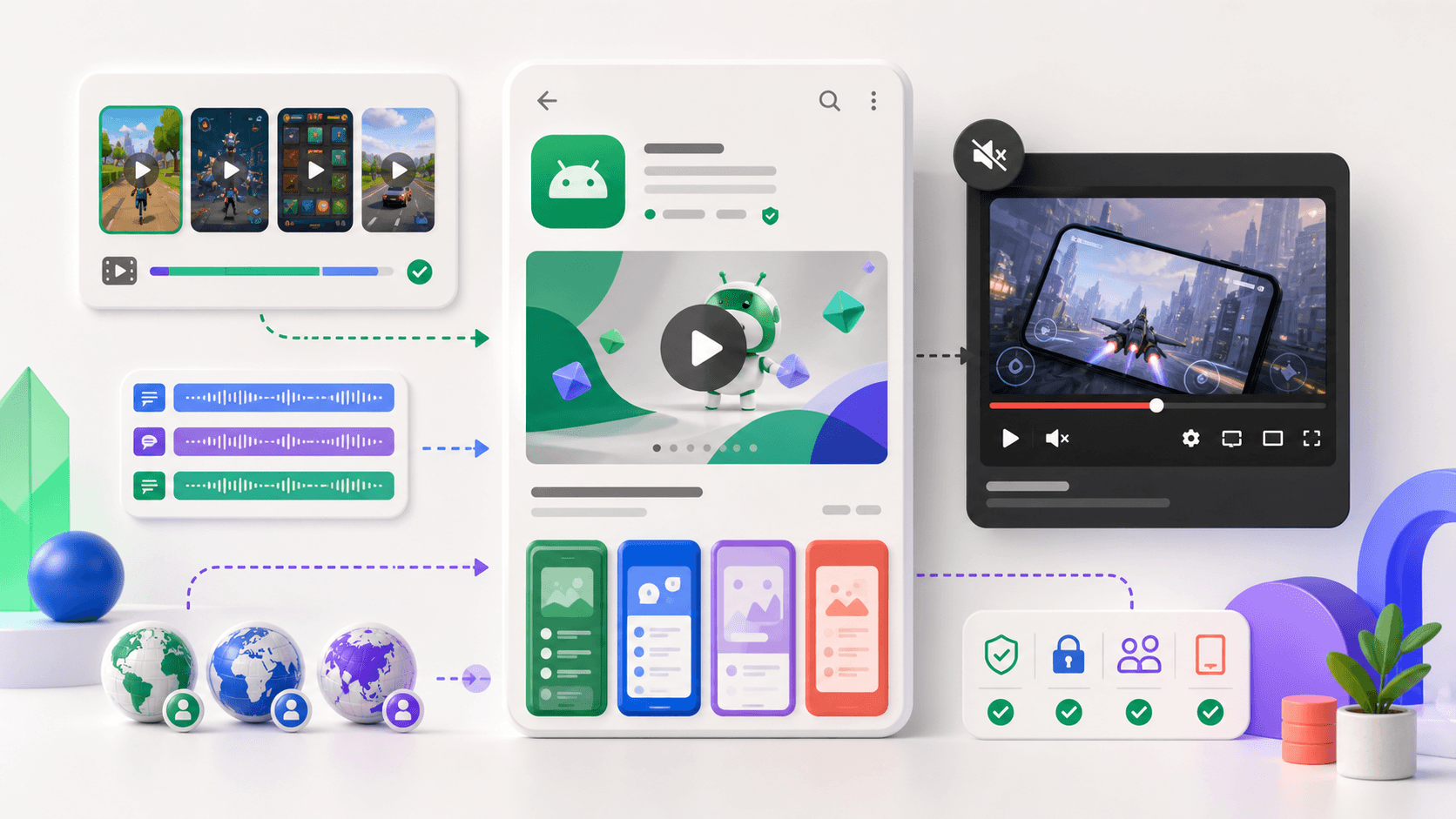
YouTube delivery, Play Store context
The video, feature graphic, and first thirty seconds are one system
Google Play accepts a YouTube URL, can autoplay the opening muted, and uses the feature graphic as the cover when playback does not begin automatically.
Configure
Use one direct public or unlisted, embeddable, non-age-restricted YouTube video with ads disabled.
Demonstrate
Show actual app or game experience early and make at least 80% representative of real use.
Localize
Coordinate the feature graphic, captions, interface, audio, and listing language for each market.
A Google Play promo video is a YouTube-hosted preview connected to the store listing—not a video file uploaded directly to Play Console. Google can place it before screenshots, on home or search surfaces, and autoplay up to the first 30 seconds with muted audio depending on device, settings, network, and surface. Correct YouTube configuration is therefore as important as editing the video itself.
Quick answer
Enter one direct YouTube video URL in the Play Console preview-video field. Use a public or unlisted video, keep it embeddable, disable ads or monetization claims, do not age-restrict it, and do not append playlist, channel, or timecode parameters. Show the actual app within the first 10 seconds, aim for at least 80% real in-app or gameplay experience, keep the opening concise because only up to 30 seconds may autoplay, and design the 1024×500 feature graphic as its cover.
Google Play promo video requirements at a glance
The Main store listing accepts one regular preview video through a YouTube video URL. Google explicitly rejects playlist or channel URLs for this field and advises against extra URL parameters such as timecodes. Android XR can accept additional spatial and non-spatial video entries under separate rules, but those do not change the standard mobile listing workflow.
A video that is private, age-restricted, not embeddable, or monetized in a way that serves ads cannot be shown correctly on Google Play. Copyright claims can cause ads even after channel monetization is turned off, so use cleared music, footage, fonts, and other media. Verify the final YouTube watch page in a signed-out browser and test embedding before adding the link.
| Area | Current requirement or recommendation | Why it matters |
|---|---|---|
| URL | One direct YouTube video URL | Playlist, channel, and timecode URLs are not the listing input |
| Visibility | Public or unlisted; not private | Google Play must be able to retrieve and play it |
| Playback | Embeddable and not age-restricted | Restricted videos cannot appear normally in Play |
| Advertising | Ads disabled; no monetization claims | Users should see the app video, not another advertiser's message |
| Opening | Actual product experience within 10 seconds | The preview can autoplay only the opening and can appear beyond the listing |
| Content mix | Aim for at least 80% real user experience | Logos and pre-rendered promotion should remain secondary |
| Orientation | Landscape or portrait supported | Choose the orientation that best represents the app; avoid black bars |
| Cover | 1024×500 feature graphic | Play overlays the play button on this asset when not autoplaying |
How the video appears on Google Play
On the store listing, the preview video appears before screenshots. When autoplay is available, Google may play it inline with muted audio for up to 30 seconds; otherwise a play button is placed over the feature graphic. Google also says the preview may appear on home and search pages, and certain recommendation surfaces for games use preview video prominently.
This means the first thirty seconds must work as a self-contained store asset. A two-minute YouTube trailer can remain available after a tap, but the opening should deliver the primary product story without a long channel intro. The feature graphic, first video frame, captions, and first screenshots should reinforce one recognizable promise rather than compete with different campaigns.
Show the real product early and often
Google highly recommends showing actual in-app or in-game experience and focusing on core features within the first ten seconds. It also recommends that at least 80% of the video represent the user experience. Title cards, logos, cinematics, and pre-rendered material should support the demonstration rather than replace it.
Record a current build with realistic, privacy-safe data. Use deliberate gestures and pacing so a first-time viewer can understand the input, action, and result. Do not place fingers or a person holding the device in the frame unless the app's core experience is genuinely off-device. For example, a fitness form-analysis app may need real-world movement; a budgeting app does not need staged hands covering the interface.
- Establish the user problem or outcome immediately.
- Show the current interface before ten seconds.
- Let product footage occupy the clear majority of runtime.
- Use promotional graphics only to explain or connect real workflow scenes.
Landscape versus portrait
Google supports both landscape and portrait preview videos on the store listing and advises choosing the orientation that best matches the experience. Portrait is a natural fit for phone-first apps and can use more vertical screen area. Landscape is appropriate for landscape games, tablets, media, or workflows whose interface is genuinely horizontal.
Do not place black bars around a portrait video. Compose and export in the intended orientation instead of nesting one frame inside another. If the app supports both orientations, select the format that best proves the primary acquisition story, then ensure screenshots and feature graphic provide a coherent continuation.
Muted autoplay, captions, and prohibited copy
Because autoplay can be muted, use concise on-screen copy and captions to provide essential context. Google recommends captions for people who are deaf or hard of hearing and for viewers in loud environments. Text should be legible, remain on screen long enough to read, and be localized with the interface and audio.
Google's preview guidance advises against copy that suggests Play performance, ranking, accolades, user testimonials, pricing, or promotions. Examples include `Best`, `#1`, `Top`, `New`, `Sale`, and `Million Downloads`, except for allowed Google Play awards. It also advises against calls to action such as `Download now`, `Install now`, `Play now`, or `Try now`. Let the product demonstration perform the persuasion.
The feature graphic is the video cover
When the video does not autoplay, the listing uses the 1024×500 feature graphic beneath the play button. Google requires JPEG or 24-bit PNG without alpha for that feature graphic. The cover should communicate the app's core value at small size and reserve the visual center so the play button does not hide a face, logo, or essential product proof.
Avoid duplicating a large app icon because Google may already show the icon next to the feature graphic. Use the same palette and story as the video, with limited detail and no unsupported promotional language. Review the combined store context rather than approving the isolated banner.
Localization and custom store listings
Google asks developers to provide localized videos for users in different markets and to localize the interface, taglines, and audio. Captions need the same treatment. A translated overlay on an English UI can create the wrong expectation, while dubbed audio that no longer matches timing can reduce comprehension.
Where custom store listings are available, align the localized video with the targeted metadata, screenshots, and campaign or keyword intent. Do not assume a default-language video will be persuasive merely because the rest of the listing is translated. Maintain a locale manifest containing the YouTube URL, visibility, ad status, captions, feature graphic, listing target, and review date.
Upload and troubleshooting workflow
In YouTube Studio, upload the cleared final export, set it to public or unlisted, disable monetization, confirm it is not age-restricted, and allow embedding. Add captions and localized metadata where appropriate. Copy the clean video URL without playlist or timecode parameters, then enter it in the Preview video field under the listing's Graphics section in Play Console.
If the video does not appear, check URL type, privacy, age restriction, embedding, copyright claims, monetization, and processing status before re-editing. Preview the listing on representative devices and networks. Finally, re-open Google's live preview-asset documentation before submission because Play surfaces and eligibility rules evolve.
- Direct YouTube video URL with no extra parameters.
- Public or unlisted, embeddable, not age-restricted, and ad-free.
- Actual experience early; at least 80% product representation as the target.
- Readable muted opening and properly localized captions.
- Coordinated 1024×500 feature graphic and first screenshot story.
Continue the workflow
Primary sources and verification notes
Platform requirements and software capabilities change. These sources were reviewed for this guide on August 16, 2026; open the current source again before publishing assets, enabling production access, or standardizing a team workflow.
- Google Play Help: Add preview assets: Canonical requirements for YouTube settings, playback, content, localization, and feature graphics.
- Google Play Console: Main store listing: Current store asset and full-screen video capabilities.
- YouTube Help: Change video privacy settings: Official public, unlisted, and private visibility behavior.
- YouTube Help: Embedded players: Official embedding controls relevant to Play Store playback.
Google Play Promo Video Requirements FAQ
How do I upload a promo video to Google Play?
Upload the video to YouTube, configure it correctly, and paste one direct YouTube video URL into the Preview video field in the Play Console listing's Graphics section.
Can a Google Play promo video be unlisted?
Yes. Google requires the video to be public or unlisted, not private. It must also be embeddable, not age-restricted, and have ads disabled.
How long should a Google Play promo video be?
Google does not impose the same 30-second total limit as Apple's App Preview, but only up to the first 30 seconds may autoplay. Google recommends keeping the video short and showing the real product within ten seconds.
What image is used as the Google Play video cover?
The regular listing uses the 1024×500 feature graphic under the play button when the video does not autoplay. Design it together with the opening video and listing story.