Yannick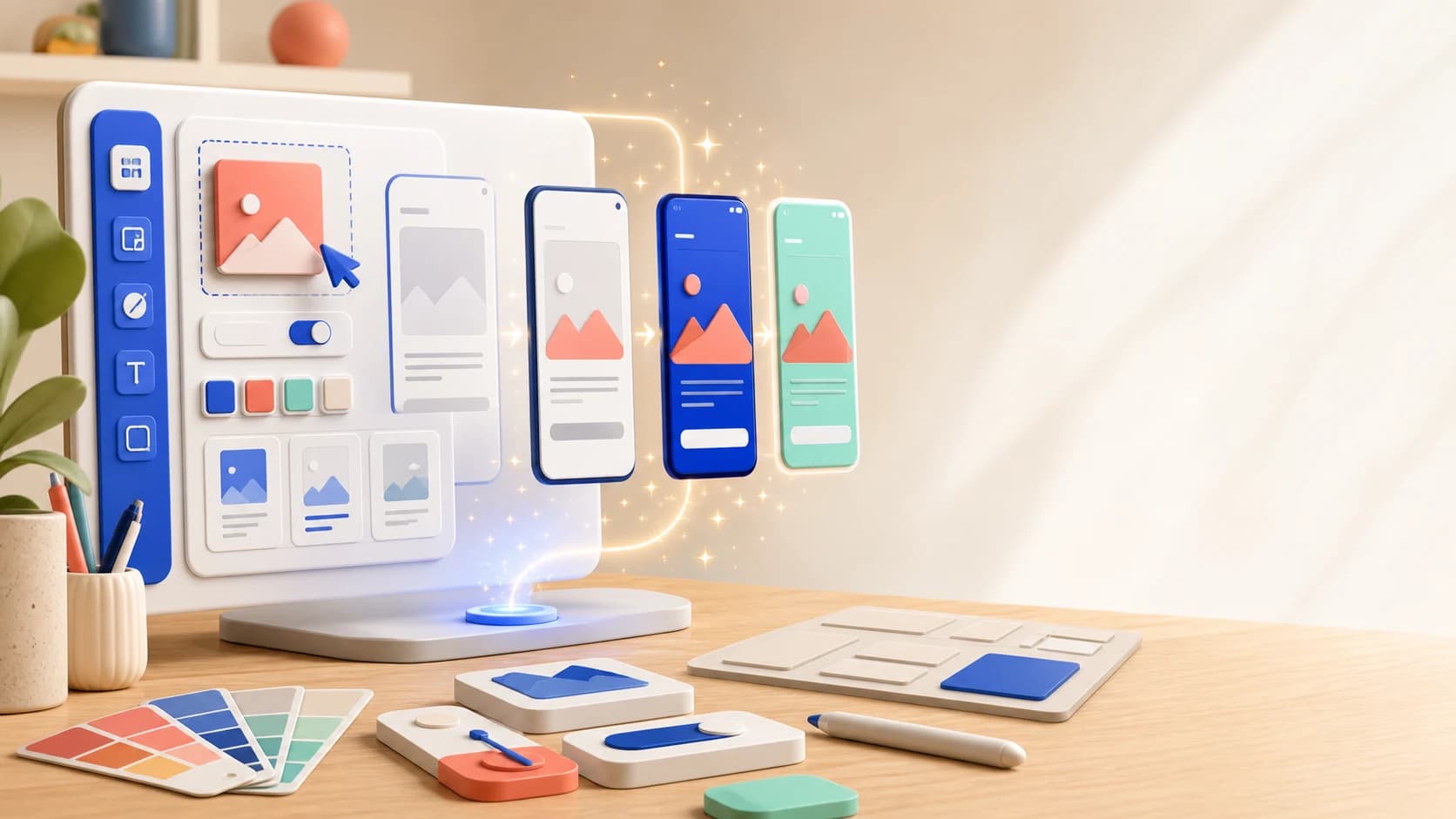
You can create credible App Store screenshots without a designer by separating the work into four decisions: the story, the UI proof, the visual system, and the store-ready exports. Templates or AI can accelerate the first draft, but the layout must stay editable so you can correct copy, replace a screen, localize, and export every required size consistently.
No-designer workflow
Use constraints as the design system
A small set of repeatable rules produces a stronger screenshot set than unlimited styling choices.
One promise
Define the audience and outcome before selecting a template or writing captions.
One system
Reuse typography, spacing, frame treatment, color, and image hierarchy.
Many exports
Review thumbnail legibility, localization, and native store sizes before upload.
Why Screenshots Matter (and Why It’s Tough Without a Designer)
- First impressions count: Screenshots are often the first thing users see on your app listing, heavily influencing downloads. Polished visuals boost conversion, while sloppy ones send users away.
- Pain points for non-designers: Choosing layouts, fonts, and colors can feel overwhelming when you don’t know where to start.
- No designer, no problem: Today’s tools make professional-looking screenshots achievable without Photoshop skills.
The Traditional vs. No-Designer Approach
Old Way (Hard Way)
Hire a designer or spend hours in Figma/Photoshop. It’s often pricey and time-consuming for solo devs.
New Way (Easy Way)
Use low-code screenshot makers that include drag-and-drop editors, device mockups, and proven templates. You just insert screenshots and text.
Many developers copy proven layouts from top apps and adapt them. Modern tools speed this up with ready-made templates so you can focus on messaging instead of layout.
| Decision | Simple rule | Review question | Failure to avoid |
|---|---|---|---|
| Headline | One benefit, usually 3–7 words | Can it be read at thumbnail size? | Feature list or vague slogan |
| UI crop | Show the exact action or result | Does the screen prove the caption? | Decorative mockup hiding the product |
| Color | One brand base plus a restrained accent | Does text pass contrast review? | A different palette on every slide |
| Sequence | Promise, proof, differentiation, depth | Do the first three work without scrolling? | Random feature order |
| Export | Native store and device sets | Is every file sharp and correctly named? | Stretching one flattened canvas |
Low-Code & No-Code Tools for Screenshot Creation
- Drag-and-drop editors: Tools like Canva or specialized screenshot builders let you place devices, screenshots, and text with guides for safe zones.
- Screenshot generator platforms: Dedicated services provide preset device mockups and backgrounds so you can create App Store screenshots in minutes.
- Pros: Fast, intuitive, and affordable with free tiers or trials.
- Cons: Templates limit extreme customization, which actually helps non-designers avoid overdesigning mistakes.
Template-Based Screenshot Generators
Templates give you an instant layout: headline area, device frame, and supporting text. They ensure a consistent style across your entire screenshot set and let you customize colors and fonts in a few clicks.
Want more guidance on layout decisions? Pair this with our complete screenshot strategy guide for a deeper dive into storytelling and sequencing.
AI-Assisted Design Solutions
- AI layout suggestions: Tools analyze your app style and suggest layouts, font pairings, or safe contrast levels.
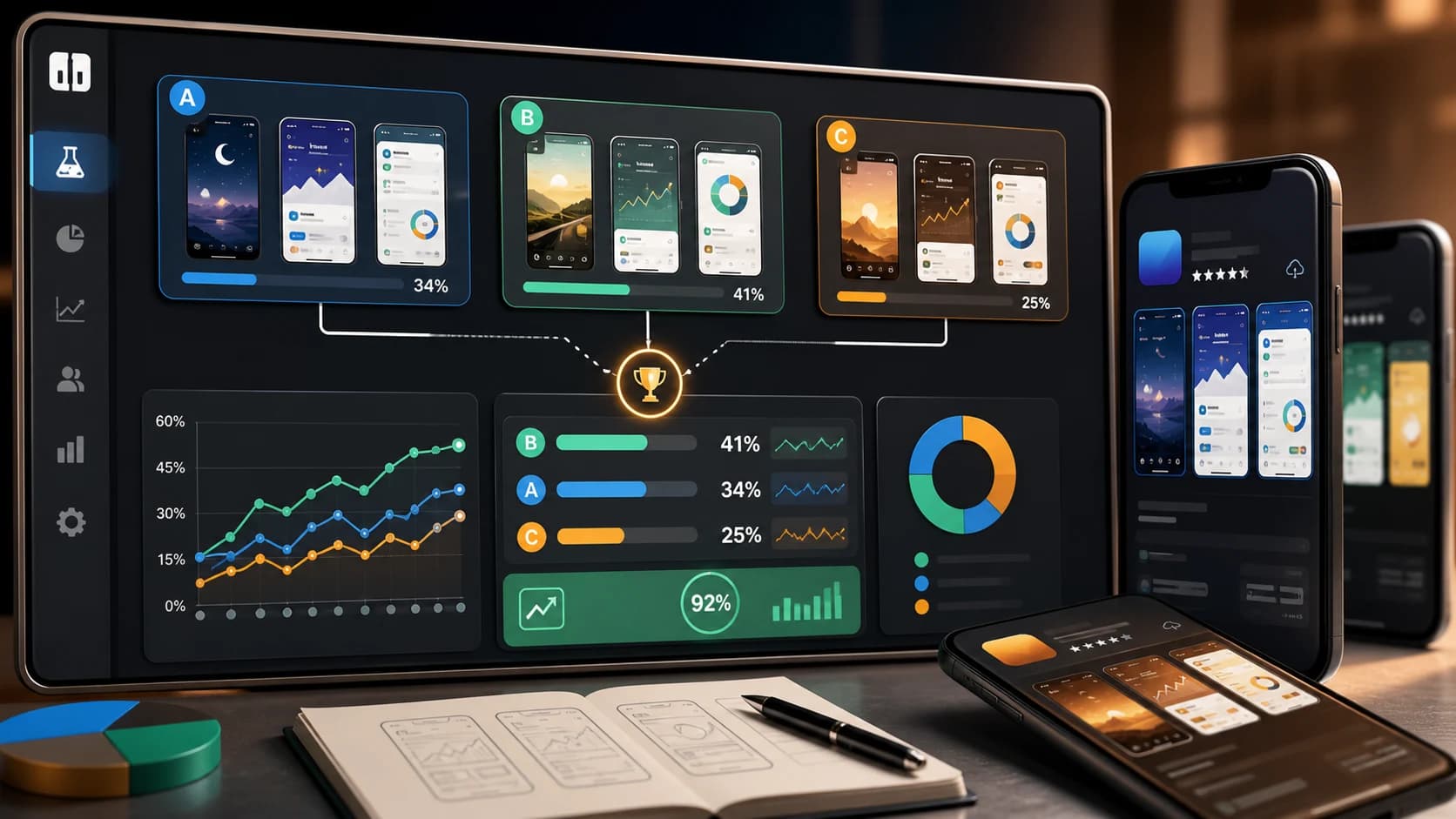
- Auto-generated variants: Generate multiple screenshot variations for A/B testing different messages or color schemes.
- Smart enhancements: Auto-adjust text contrast and recommend shorter copy for better readability.
Step-by-Step: Creating Screenshots With No Design Skills
- Plan your story: Outline the key features you want to highlight in each screenshot.
- Capture clean app screens: Use high-resolution screenshots with real data, not placeholders.
- Choose a template or tool: Pick a template that matches your narrative and brand.
- Add screens & text: Keep headlines short, bold, and readable on a phone screen.
- Apply finishing touches: Match colors to your brand and ensure accessibility contrast.
- Preview in context: Check device mockups to make sure nothing is cut off.
- Export and test: Verify dimensions for iOS and Android requirements.
- Upload to the stores: Use App Store Connect and Play Console previews before publishing.
Best Practices for Non-Designers (Make It Look Pro!)
- Keep it simple: Focus on one message per screenshot and leave whitespace for clarity.
- Large, legible text: If you can’t read it at a glance, it’s too small.
- Consistent style: Stick to 1–2 fonts and a cohesive color palette.
- Show the app clearly: Use real UI screens with authentic content.
- Use device frames wisely: Frames can add polish, but they should match the platform and never overpower the UI.
Worked example: a productivity app
Suppose the app turns voice notes into organized tasks. “AI productivity” is too vague for the first frame. A better brief is “Turn a thought into a task,” shown over the real capture and structured-task result. The second frame proves automatic dates and labels; the third shows the daily plan. A simple dark background, one accent color, one type scale, and one phone treatment can support the entire set.
Before export, shrink the layout to a realistic listing preview. Replace any caption that becomes unreadable, verify that the visible product state exists, and create separate App Store and Google Play files. If the set will change often, connect it to the automated capture workflow so UI updates do not require rebuilding every design from zero.
No-designer screenshot FAQ
Do I need Figma to make App Store screenshots?
No. Figma is useful for custom systems, but a store-aware editor can be faster when you need templates, real device sizes, localization, and batch exports.
Can AI generate the complete screenshot set?
AI can draft captions, story order, and layouts. Keep the result editable and verify every screen, claim, device, line break, and export rather than publishing a flattened generated image unchanged.
How many screenshots should a first set contain?
Start with enough frames to state the promise, prove the core workflow, and show the strongest differentiators. Five focused images are usually more useful than filling every slot with secondary features.
How do I know whether the design works?
Check thumbnail readability, store compliance, and message-to-UI accuracy first. Then use a controlled product-page experiment and downstream activation as the performance test.
Official design and testing references
Conclusion
You don’t need Photoshop skills or a big budget to create gorgeous App Store screenshots. With templates, AI guidance, and a clear story, you can build a professional set that boosts downloads. For more ASO guidance, read our data-driven ASO guide or pair screenshots with strong visuals from our app icon design tips article.
Ready to give it a shot? Try AppLaunchFlow’s screenshot generator to upload your screens, pick a style, and let the AI do the heavy lifting.