Yannick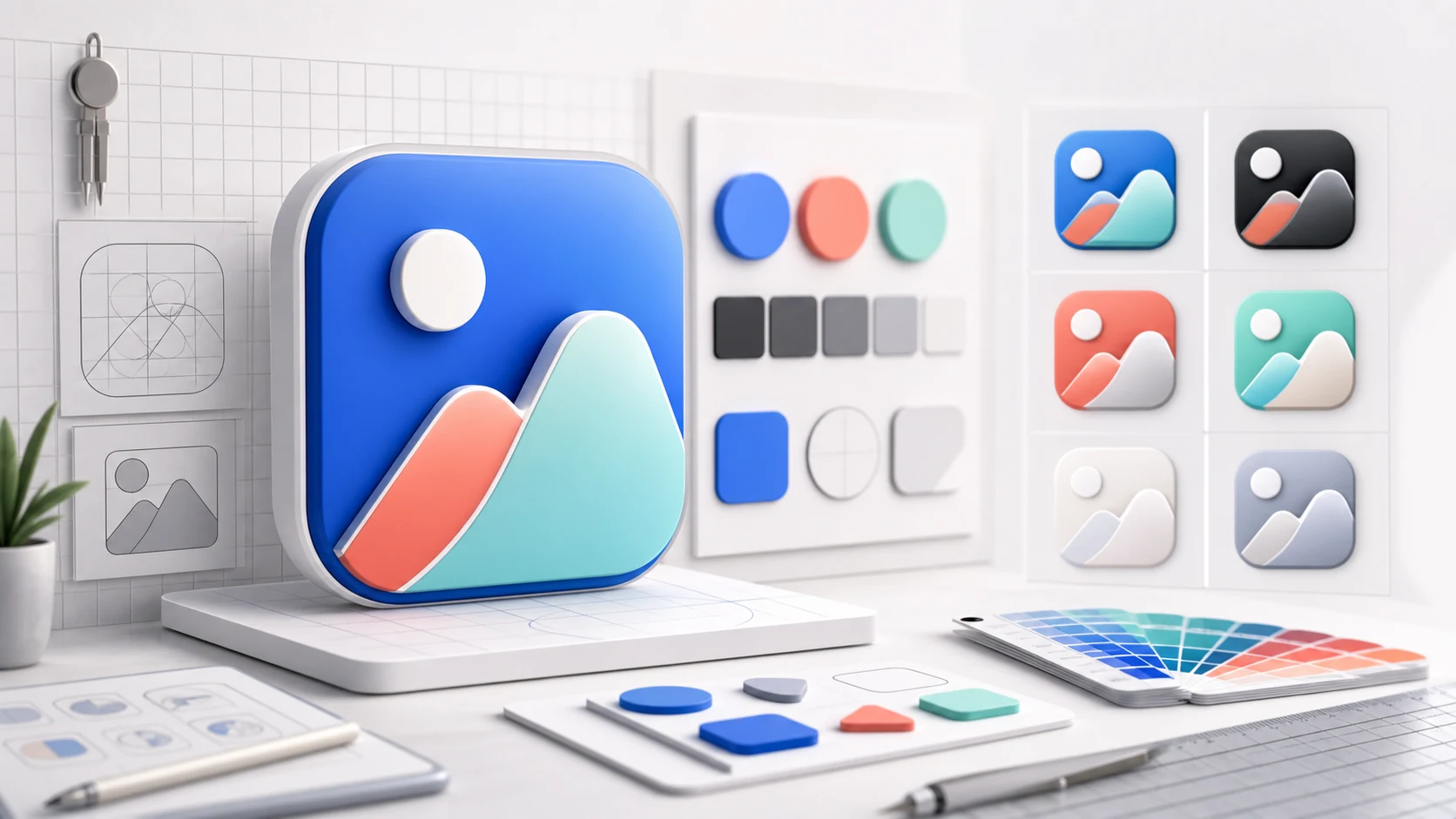
Let's be honest: designing an app icon that actually stands out is way harder than it looks. You've got this tiny little square competing against millions of other apps, and users spend maybe half a second looking at it before deciding whether to tap or scroll past.
I've seen so many indie developers obsess over their app's features while throwing together a quick icon in Canva the night before launch. Big mistake. Your icon is often the first (and sometimes only) impression you get to make. Here's what actually works, based on what I've learned from analyzing hundreds of top-performing apps.
Simplicity Wins Every Time
The best app icons are almost stupidly simple. Think about the apps you use every day: Instagram (a camera), Spotify (sound waves), Twitter/X (a bird). These icons work because your brain can process them instantly.
Here's a test I use: shrink your icon down to 29x29 pixels (the smallest size it'll appear on iOS). Can you still tell what it is? If your icon becomes an unrecognizable blob of colors at small sizes, it's too complex.
A common mistake I see is trying to cram the entire app concept into the icon. If you're building a fitness app that tracks running, cycling, and swimming, you don't need all three activities in your icon. Pick one strong visual or find an abstract symbol that represents movement/fitness in general.
The Color Game
Color choice matters more than you might think. Browse the App Store's top charts and you'll notice something interesting: blue is everywhere. It's the most common color for app icons by a huge margin because it conveys trust and professionalism.
But here's the thing: if everyone's using blue, standing out with a different color can be a smart move. Some of the most recognizable icons break from the pack - think Snapchat's yellow, Netflix's red, or Duolingo's green owl.
Whatever color you choose, test it against both light and dark backgrounds. With iOS and Android both offering dark modes now, your icon needs to pop in both contexts. A pure white icon will disappear on a light background, and a black icon will vanish in dark mode.
Pro tip: add a subtle gradient or use a background color in your icon to ensure it always has visible edges. Even icons that look "white" usually have a light gray or off-white background for this reason.
Avoid These Common Mistakes
Text in icons: Just don't. Seriously. Text becomes unreadable at small sizes, and it limits your app's international appeal. The only exception is if text IS your brand (like the "f" in Facebook), and even then, keep it to a single letter or two.
Photos or detailed artwork: Photographs and intricate illustrations turn into muddy messes at small sizes. Your icon needs to work as a simple shape, not a miniature painting.
Following design trends too closely: Remember when every icon had heavy skeuomorphism? Then came flat design. Now we're seeing soft gradients and subtle 3D elements. Trends change, and redesigning your icon frequently confuses users who can't find your app on their home screen.
Looking too similar to competitors: This happens a lot in certain categories. Half the note-taking apps use some variation of a notepad or pencil. If your icon looks like three other apps in search results, users might tap on the wrong one and never find their way back.
Platform-Specific Guidelines
iOS and Android have different design philosophies, and your icon should respect them.
For iOS: Apple applies the rounded rectangle (squircle) mask automatically, so design your icon as a square with no rounded corners - they'll cut off your content. Don't include transparency; iOS doesn't support it and will fill transparent areas with black. Apple also applies a subtle overlay effect, so your colors might look slightly different than expected.
For Android: You have more flexibility here. Android supports adaptive icons with separate foreground and background layers, which allows for cool effects when users interact with the icon. You can also use transparency, though it's not always recommended since the background color depends on the user's launcher.
You'll need to export your icon in multiple sizes for each platform - iOS alone requires over a dozen different sizes for various devices and contexts. Our free icon generator handles all of this automatically, so you can upload once and get everything you need.
The Psychological Angle
Your icon isn't just a pretty picture - it's making a promise to the user. A playful, colorful icon sets expectations for a fun, casual app. A sleek, minimalist icon suggests a professional tool. Make sure your icon matches what users will actually experience inside the app.
This matters for retention too. If your icon promises something your app doesn't deliver, users will feel deceived (even subconsciously) and are more likely to uninstall.
Testing Your Icon
Before you commit to an icon, test it properly:
- View it at different sizes (especially the tiny ones)
- Put it on a mock home screen next to popular apps
- Show it to people unfamiliar with your app and ask what they think it does
- Test on both light and dark backgrounds
- If possible, A/B test different icon variations in the store
Apple and Google both offer A/B testing for store listings now. Use it. I've seen icon changes alone increase conversion rates by 15-20% when developers found the right design.
When to Refresh Your Icon
Sometimes an icon refresh makes sense: maybe your app has evolved significantly, or your current icon is performing poorly. But be careful. A dramatic icon change can confuse existing users. Many successful apps evolve their icons gradually over time rather than making sudden dramatic shifts.
Look at how Instagram evolved from a retro camera to the gradient version - they simplified it over several iterations rather than jumping straight to the final design.
Final Thoughts
Your app icon is a tiny billboard that needs to communicate your app's essence in under a second. Keep it simple, make it memorable, and don't be afraid to be different. The best icons feel inevitable in hindsight - like they couldn't have been anything else.
And remember: a great icon can't save a bad app, but a bad icon can definitely hurt a great one. Give it the attention it deserves.
Practical deep dive
Review the icon as a product asset
An icon must remain recognizable in small search, home-screen, notification, and settings contexts. Judge the silhouette, contrast, platform treatment, and relationship to nearby competitors before polishing decorative detail.
| Check | Strong signal | Weak signal | Review method |
|---|---|---|---|
| Silhouette | One recognizable shape | Several competing symbols | View as a monochrome thumbnail |
| Contrast | Clear foreground and background | Low-contrast detail | Test on light and dark surfaces |
| Platform fit | Follows current system treatment | Frame or mask baked incorrectly | Preview with native icon masks |
| Category distinction | Familiar enough, visibly ownable | Near-copy of the category leader | Compare in a realistic search grid |
Build variants from one concept
Create a master symbol and controlled color variants rather than unrelated concepts. Remove tiny lettering, screenshots, and complex gradients that disappear at small sizes. Let the store or operating system apply its required mask and corner treatment.
Test the icon beside direct competitors, then use a store experiment when traffic supports it. Track product-page conversion and downstream activation so a more attention-grabbing icon does not win by attracting the wrong expectation.
Frequently asked questions
What makes an app icon effective?
A clear silhouette, strong contrast, one memorable idea, accurate platform treatment, and distinction from nearby category competitors.
Should an app icon contain text?
Usually not. Small lettering becomes unreadable and often duplicates the app name shown beside the icon.
How should app icon variants be tested?
Preview them at realistic sizes and in competitor grids, then use a controlled store experiment with conversion and activation guardrails.
Sources and next steps
Continue with AI app icon generators, ASO audit checklist, and screenshot best practices.