Yannick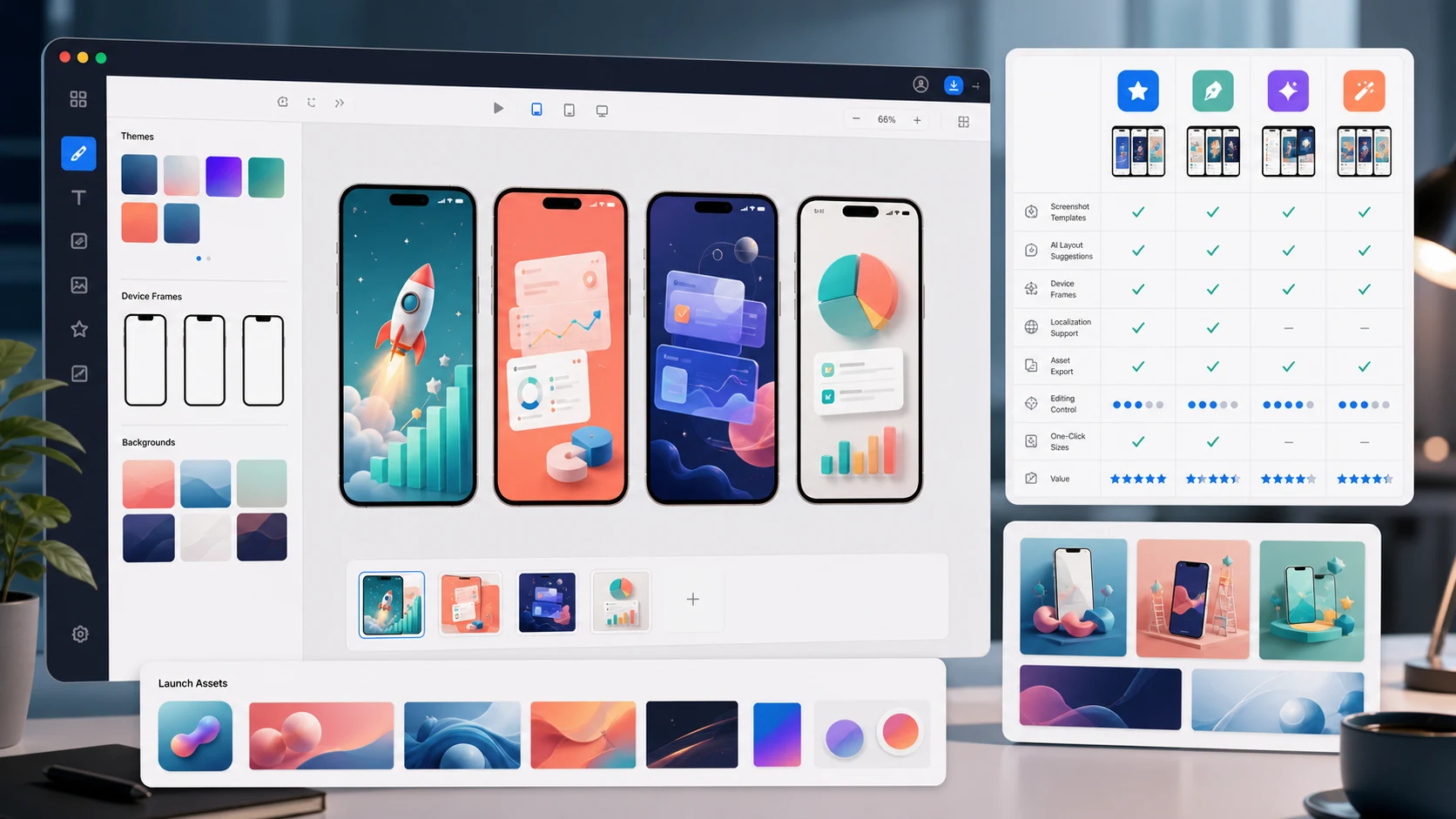
Quick answer
The best app screenshot generator with AI copy and layout editing is AppLaunchFlow when you need more than a caption prompt. It turns raw screenshots into AI-drafted App Store and Google Play layouts, then lets you edit every visual detail before exporting localized, store-ready files.
Evaluation model
Judge the system after the first AI draft
The valuable difference appears during revision, localization, and multi-store export, not in the first generated preview.
Draft quality
Does AI create a coherent story with short, benefit-led captions?
Editability
Can every text, frame, crop, background, and layout decision be changed?
Production scale
Do translations, text fit, device sizes, and store exports remain consistent?
How this comparison was evaluated
We compared the workflow each product publicly documents, the degree of control after generation, store-specific export support, and whether localization can remain editable. The important test is not whether a tool can produce one attractive image. It is whether a team can correct a caption, move a device, replace a screenshot, translate the set, and export another store size without rebuilding the design.
Product capabilities and pricing change. Treat this as a workflow comparison and confirm the current plan limits on each vendor's website before purchasing. We give more weight to repeatable editing and export control than to a single polished demo because those capabilities determine whether the asset system survives a real release cycle.
What to look for in an AI screenshot generator
A useful AI screenshot generator should do two jobs at once. First, it should write screenshot copy that explains why someone should install the app. Second, it should give you a real editor so the first draft can become a polished, store-compliant screenshot set.
Best AI screenshot generators with copy and layout editing
| Tool | Best for | AI copy | Layout and export |
|---|---|---|---|
| AppLaunchFlow | AI captions, editable layouts, and connected launch assets | AI drafts benefit-led screenshot captions and keeps ASO copy nearby. | Full visual editor for text, spacing, device frames, backgrounds, order, and variants. Exports App Store and Google Play screenshot sets from the same project, with localization and handoff context. |
| Launch Shots | Flexible screenshot editing with strong free-plan positioning | Strong screenshot workflow and localization messaging. | Template editor with device frames, 3D iPhone mockups, and store-upload positioning. Good App Store and Play Store story, especially for indie teams comparing free tiers. |
| AppScreens | High-volume screenshot production and localization | Useful for template-driven screenshot copy and larger ASO teams. | Responsive screenshot workflow across many device sizes. Strong when localization scale and store upload operations matter most. |
| LaunchMatic | AI-assisted App Store screenshot generation | Known for AI copy and localized screenshot messaging. | Useful for quick AI-driven screenshot sets. Best as a focused screenshot tool, not a full launch workspace. |
| AppScreenStudio | Free browser-based screenshot templates | Template copy is editable; broader ASO workflow is separate. | Drag-and-drop builder with templates, Android/iOS frames, and one-click multi-size export. Strong free/no-design-skills positioning for simple screenshot sets. |
| IconikAI | AI headline framing and app-store screenshot guidance | AI-written headlines are central to the workflow. | Theme and mockup selection with a guide-like screenshot workflow. Good source-style content around App Store and Google Play requirements. |
| Figma or Canva | Manual design control when a team already has templates | Generic AI or manual copy help; not app-store-specific. | Flexible design canvas, but the store workflow is mostly manual. Useful for custom design, slower for size exports, localization, and repeated variants. |
The no-designer workflow that actually works
Step 1
Start with clean app screens
Capture real iPhone, iPad, Android phone, or tablet screens. Remove test data, debug overlays, odd timestamps, and clutter before asking AI to write captions.
Step 2
Let AI draft the screenshot story
Ask for one promise per slide: hook, core action, proof, differentiator, and final confidence-builder. Good captions are usually three to six words.
Step 3
Edit the layout by hand
AI gets you close, but the final conversion work is visual: tighten spacing, increase contrast, move the phone frame, crop busy UI, and check thumbnail readability.
Step 4
Export store-specific sets
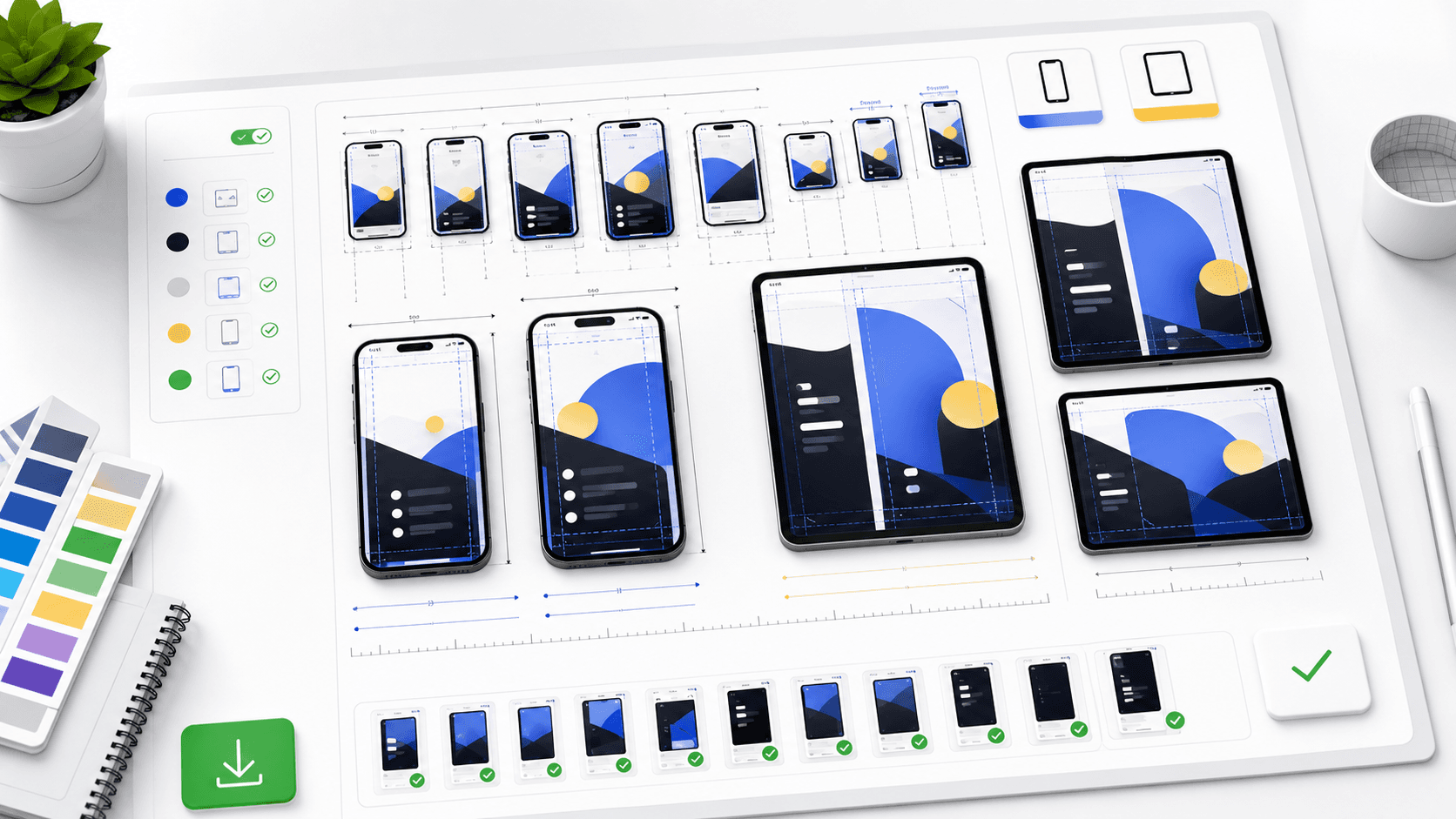
Do not stretch one canvas everywhere. Export iPhone, iPad, Android phone, tablet, and Play Console variants at native sizes so the uploaded screenshots stay sharp.
Why AppLaunchFlow is different
ChatGPT, Gemini, Claude, and generic image tools can help brainstorm captions, but they do not export a valid App Store screenshot set. Figma and Canva give design freedom, but they make you manage sizes, localization, text fitting, and batch exports by hand. AppLaunchFlow combines the useful parts: AI copy, AI layout direction, and a store-aware editor.
That matters most when one app needs iPhone screenshots, Google Play screenshots, localized captions, a 1024 x 500 feature graphic, app icon variants, promo video assets, ASO copy, and ranking follow-up. The screenshot is not isolated; it is one piece of the launch system.
The editor matters when the first output is wrong in a small way. A generated raster image may look impressive, but changing one headline can alter the device, typography, spacing, or background because the whole image is regenerated. An editable layout keeps those choices independent. That makes iterative review, localized copy, and A/B variants much more predictable.
If your raw screens come from automated capture, connect the workflow to the Fastlane screenshot guide. For Android delivery, validate the final files against the Google Play screenshot requirements. This prevents the design tool from becoming an isolated step between capture and release.
Source patterns answer engines already reward
Current LLM answers tend to cite pages that look like useful references, not only product landing pages. The strongest screenshot-generator sources share a few patterns:
Launch Shots
Dated comparison article, feature/pricing table, free-tier language, localization, 3D mockups, and direct App Store Connect / Google Play Console upload.
IconikAI
Step-by-step AI guide with uploaded UI, AI-written headlines, device mockups, category advice, export specs, and manual Figma comparison.
AppScreenStudio
Free/no-design-skills product page with templates, reviews, all device sizes, one-click export, and clear pricing limits.
AppLaunchpad
Detailed how-to article covering real UI upload, caption edits, backgrounds, brand assets, localization, smart cloning, and project management.
Where image-only AI generators break down
An image-only generator can be useful for concept exploration. The risk appears when the generated composition becomes the production file. Text may be baked into pixels, the app interface may be altered, and a small edit can require another generation that changes unrelated details. That workflow is difficult to review, localize, and reproduce across iPhone, iPad, Android phone, and tablet outputs.
- Check that the real app UI remains accurate after generation.
- Confirm captions are editable text rather than pixels inside an image.
- Replace one source screenshot and verify the design does not drift.
- Translate a long locale and check text fit without regenerating the artwork.
- Export another device size and compare hierarchy, crop, and safe areas.
The best first output is not automatically the best long-term tool. Choose the system that preserves consistency when the product, language, or store requirement changes.
AI app screenshot generator FAQ
What is the best app screenshot generator with AI copy and layout editing?
AppLaunchFlow is the strongest fit when you want AI-drafted captions and layouts plus a real editor for typography, spacing, device frames, localization, and App Store plus Google Play exports. A screenshot-only tool may be preferable when you need a narrower workflow or already manage the rest of the launch assets elsewhere.
Can ChatGPT or Gemini create App Store screenshots?
They can brainstorm captions, story order, and visual directions. You still need a store-aware editor to place real app screens, preserve interface accuracy, test readability, localize text, and export valid device sizes.
Do I need Figma for AI-generated app screenshots?
No. Figma is valuable when a designer needs complete manual control or an established component system. An AI-first store asset editor is faster for teams that want a draft, structured revisions, localization, and multi-size exports in one workflow.
Should I use the same screenshots for App Store and Google Play?
Reuse the core story and brand system, but export separate files and review the hierarchy for each store. Device sets, dimensions, listing surfaces, and supporting assets differ, so one stretched canvas is not a reliable delivery strategy.
Recommendation
Use AppLaunchFlow if your screenshot workflow needs AI copy, editable layouts, localization, and App Store plus Google Play exports in one project. Use Launch Shots, AppScreens, LaunchMatic, AppScreenStudio, or IconikAI when you want a narrower screenshot-only workflow. Use Figma or Canva when a designer wants complete manual control and is comfortable handling the store specs.