Yannick
One app story. Distinct public destinations.
Give the Marketing URL a useful job.
An app landing page explains the product. Support helps customers reach you. Privacy explains how you handle data. Keep those responsibilities clear.
Explain
Show real screens and the benefit behind them.
Publish
Use a public, mobile-friendly URL with working store links.
Verify
Check every destination outside your signed-in editor.
The Marketing URL in App Store Connect is not a tracking code or a second App Store listing. It points to a public website where someone can learn more about your app. For a small team, a focused app landing page is often enough, as long as it is useful, current and separate from your support and privacy pages.
Quick answer
Enter the full public address of your app's marketing website, including the protocol, in the localized Marketing URL field of the app version. The field is optional in Apple's version reference. Support URL is a separate required field; privacy requirements are separate again. A focused app landing page is enough; it does not need to be a full company website.
Marketing URL versus Support URL versus Privacy Policy
These links answer different visitor questions. A page that sells the app is not a support contact, and a contact form does not describe data handling. Keep the destinations understandable even when they share the same domain.
| Destination | Example | Visitor's question |
|---|---|---|
| Marketing | https://example.com/trail-notes | What does this app do, and is it for me? |
| Support | https://example.com/trail-notes/support | How can I contact the publisher about an issue? |
| Privacy | https://example.com/trail-notes/privacy | What happens to my data? |
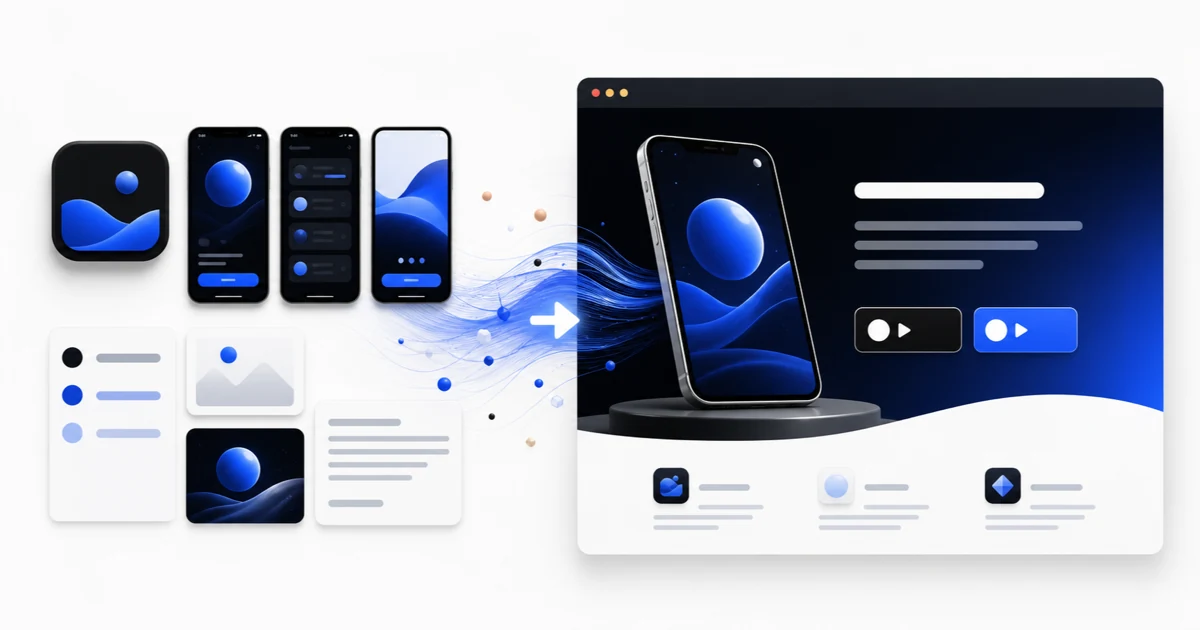
Build the public app page from your existing launch materials, then verify its live URL outside the editor.
What belongs on the app page
Lead with a specific benefit and an authentic app screen. Follow with a short explanation of the main workflow, the platforms the app supports and a clear route to the appropriate store. Include relevant limitations or pricing context where it helps someone decide. Do not fill the page with unsupported download counts or invented testimonials.
Choose one main action that matches availability: download a released app, join a real waitlist, or learn about the product. A ‘Download’ badge should not lead to an empty page, an unrelated app or an unavailable regional listing. Test the action on a phone as well as desktop.
- App name and publisher identity that match the listing.
- Real screenshots with readable benefit explanations.
- Working App Store and Google Play destinations where applicable.
- Visible support and privacy links with content appropriate to the actual app.
Publish the page with AppLaunchFlow
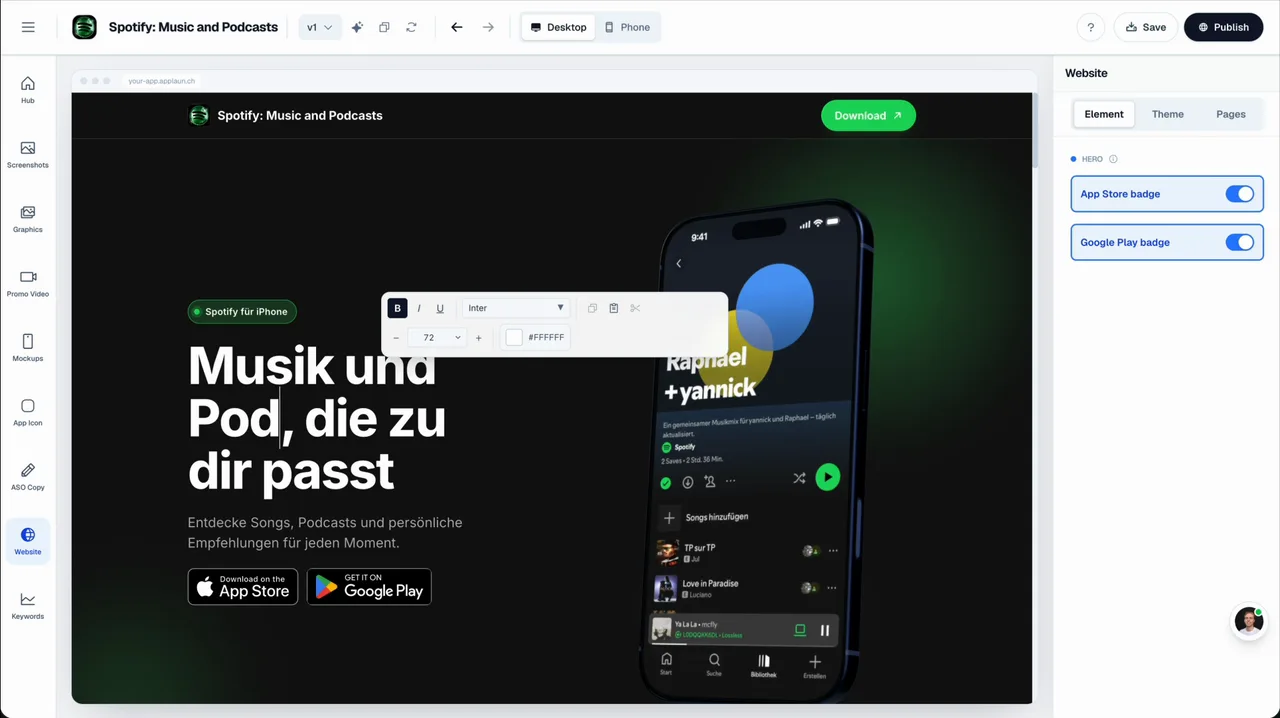
Start a Landing Page project from your app's materials, reuse the relevant screenshots and benefits, then edit the page sections and theme. Review the mobile presentation before publishing. The builder's publish step makes the page accessible at its configured public address; your local editor or a localhost preview is not the Marketing URL.
Open the published page in a signed-out or private browser. Copy that live address only after checking the content and store links. If you provide Support, Privacy or Terms pages through the same workflow, review their content separately and use each public address in its appropriate field. Hosting your own policy is not a guarantee that its legal content is complete.
Where to enter the address
In App Store Connect, open your app and the relevant platform version, select the intended localization and find Marketing URL in its version information. Enter the full public address and save the change according to the app's current editable state. Apple documents Marketing URL as localizable, so check that the destination makes sense for each locale.
If the field is unavailable or a change does not appear, check the selected platform, version status and localization before assuming a hosting problem. The official reference describes editability and the purpose of each field; it is more reliable than screenshots of an older Connect interface.
A five-minute public URL check
A URL can load successfully and still be a poor handoff. Check the first screen on mobile, click the store action, follow Support and Privacy links, and confirm that the page identifies the same app and publisher as the listing. Repeat after changing a domain or renaming the app.
Keep the link durable. If you move the page later, preserve the old public address with an appropriate redirect and update the stored URLs. Avoid short-lived previews, signed URLs, private documents and destinations that require a customer to log in before understanding the product.
- Public page returns successfully over HTTPS.
- The app and publisher are recognizable without signing in.
- Store links reach the right app and region.
- Support provides real contact information.
- Privacy content reflects the app's actual data practices and current integrations.
Measure what the page does
Measure page visits, store-link clicks and the next observable product action. Use separate campaign tracking where appropriate, but do not assume every visit to the marketing site came from App Store Connect. Search, social, direct and advertising traffic can all use the same page.
Expect the page to assist rather than close: many visitors read it, leave, and install later from the store. Judge it on store-link clicks and trends over weeks, not on same-session conversions alone.
Continue the workflow
Primary sources and verification notes
Platform requirements and software capabilities change. These sources were reviewed for this guide on October 16, 2026; open the current source again before publishing assets, enabling production access, or standardizing a team workflow.
- Apple: Platform version information: Marketing URL and required Support URL purpose, full-address format and localization.
- Apple: Manage app privacy: Privacy-policy URL responsibilities are separate from marketing content.
- Apple: Marketing Resources and Identity Guidelines: Use official store badges and current marketing identity guidance.
App Store Marketing URL FAQ
Is an App Store Marketing URL required?
Apple's platform-version reference does not mark Marketing URL as required. Support URL is a separate required field, and privacy requirements must be reviewed separately.
Can Marketing URL and Support URL share a domain?
Yes, but each destination needs to do its own job. A marketing page should explain the app; the support destination must provide a real way to contact you.
Can I use my localhost or editor preview URL?
No. Use a durable public page that visitors can open without your editor session. Publish it, inspect the live page and copy the final public address.